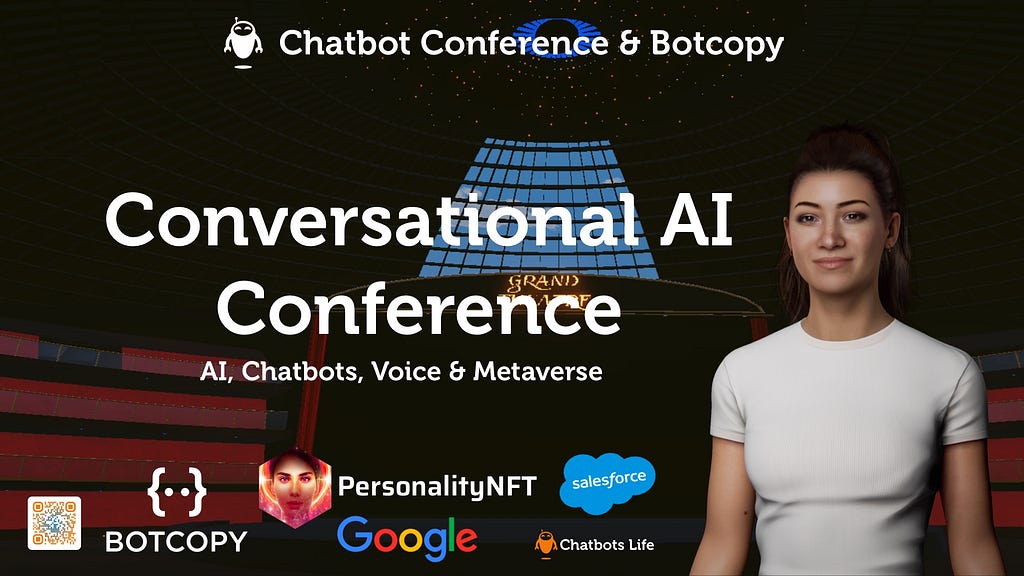
The next Chatbot & Conversational AI Conference this November 15–17, 2022. This year’s event will be held on Zoom Events and in the Metaverse so that you can attend remotely from anywhere in the world!
The event will take you from Learning to Designing to Building a Conversation AI Agent during our 3-day event!
By the end of the event, you’ll have a Conversation AI Agent that you can share with your team or implement in your business, and you’ll get Certified!
Now let’s jump into the Agenda.
Zoom Events & the Metaverse
This year’s event will be held in ZOOM and Decentraland.
Why the Metaverse?
Conversational AI is already in the Metaverse. Inworld recently raised $50 Million for their platform, which creates AI-Powered Virtual Characters.
These characters can be used in games, in the metaverse, and online as brand ambassadors.
And yes, their co-founder, Kylan Gibbs, isalso our Keynote Speaker!
Our goal was to give you a sneak peek experience of what will be like when Conversational AI, Web3.0, NFTs, and the Metaverse begin merging.
So, we created such an experience!
AI Bots in the Metaverses: This BOT will live in the Metaverse in Decentraland and attend our Conference. It solves one of the significant challenges of hosting events online: the social aspect of introducing people to each other.
This bot will use your Personality NFT to make high-quality intros!
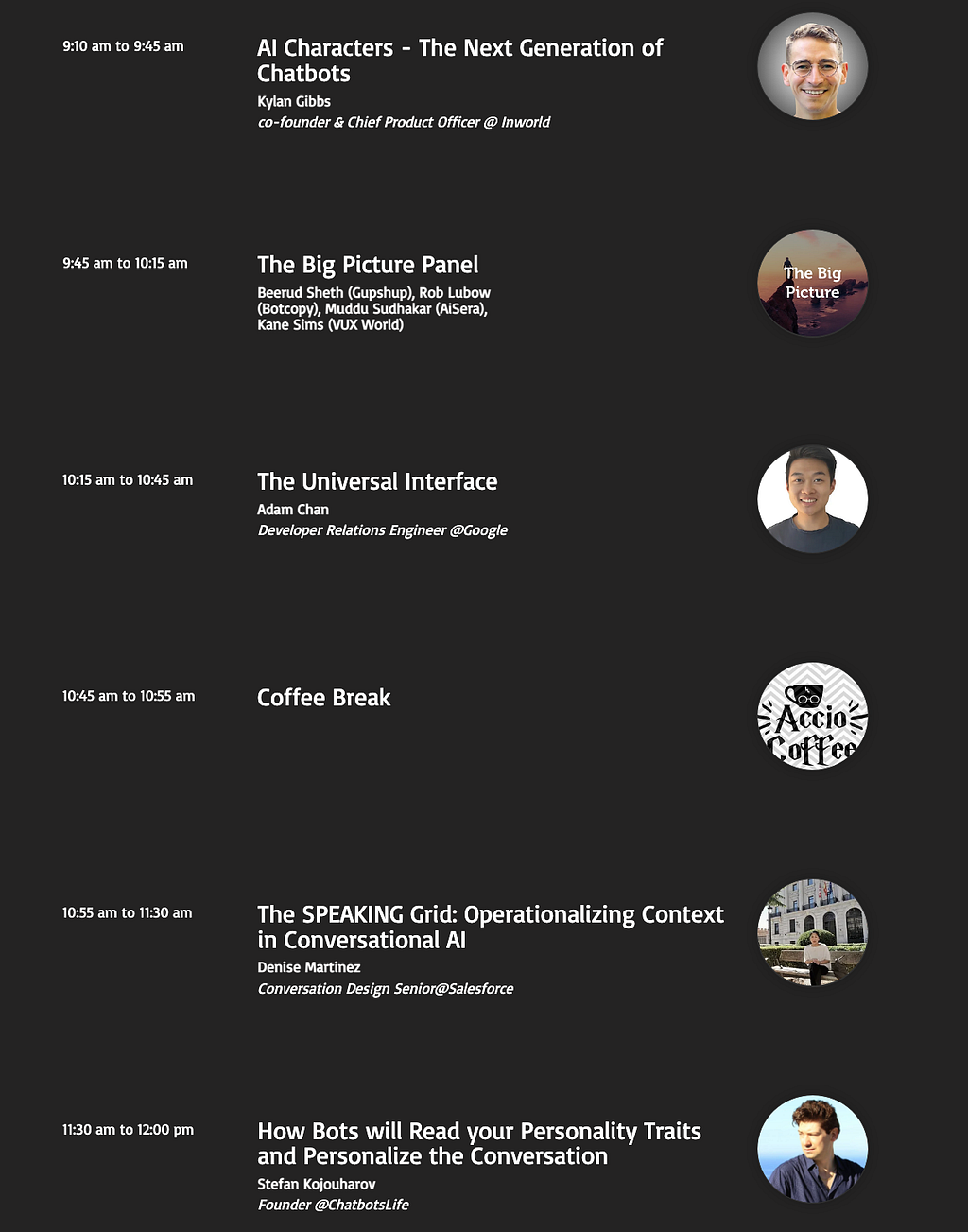
Our agenda is well thought out with you in mind. We start the day with the big picture of where the Conversational AI industry is now and where it is going.
The morning sessions feature Kylan Gibbs, co-founder & Chief Product Officer @ Inworld, who just raised $ 50 Million for creating AI-powered Digital Humans!
Morning Agenda: November 15, 2022
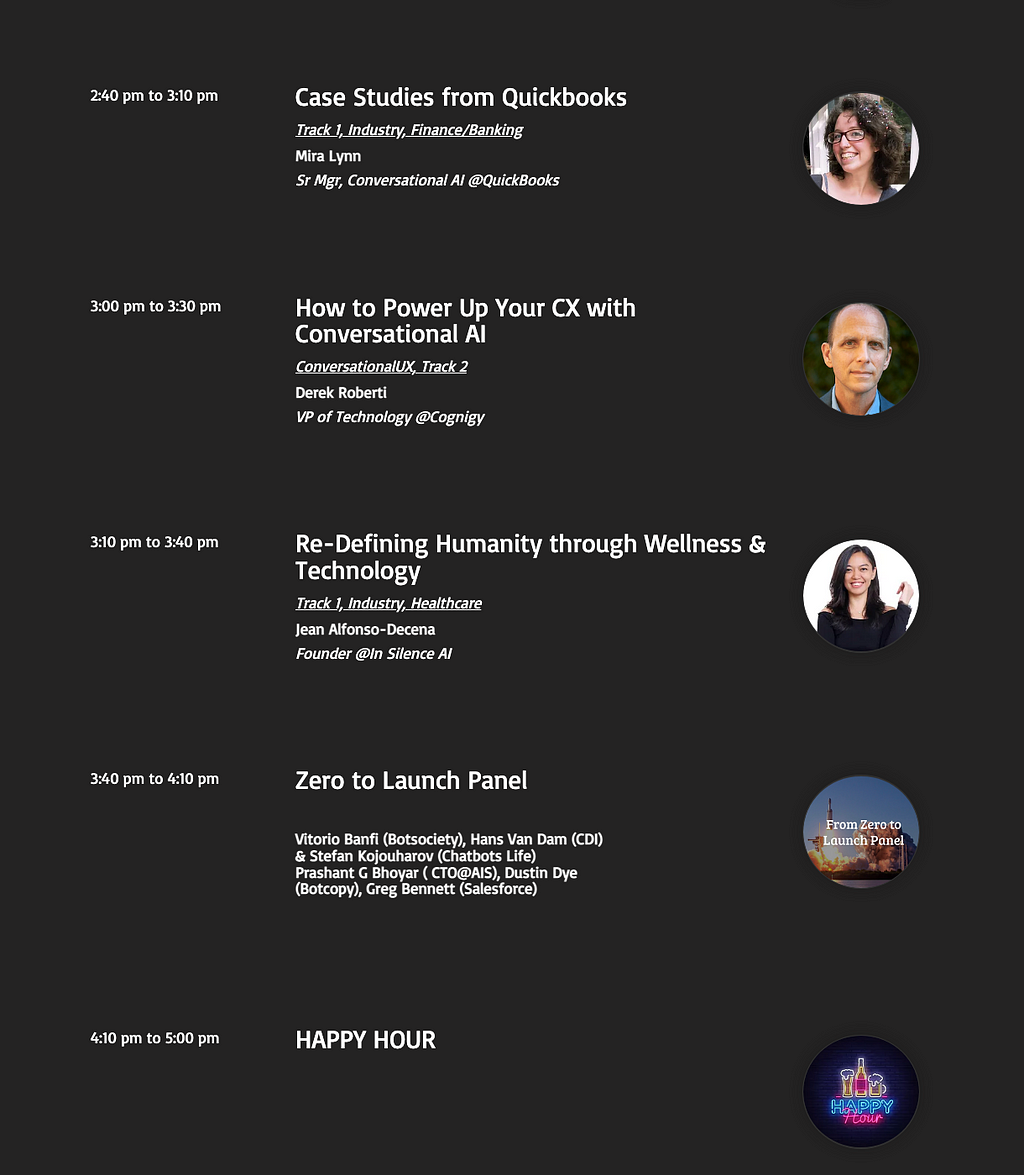
The Afternoon Sessions are where the rubber hits the road. We will do deep dives in areas of opportunity and look at execution.
The Afternoon has 3 Tracks.
Industry Track: Sessions in Finance, Banking, HR, Hospitality, Customer Centers, &
Execution Track: Design, Context, and NLU
Live Podcast: Interviews and Q&A
Afternoon Agenda: November 15, 20
Certified Workshop in Conversational UX & NLU
Day 2: November 16, 2022 | Certified Conversational UX Workshop
CDI will do a live workshop via Zoom. In this workshop, you will learn how to design a Conversational AI agent by learning the most useful design frameworks.
This is a hands-on workshop where you will apply your learning to your project.
By the end of the workshop, you’ll be able to earn a Certificate.
Day 3: November 17, 2022 | Certified AI Workshop
On Day 3 we will give your bot life….
Botcopy will share its latest framework for creating a create NLU system that leverages data and eliminates waste. This is a dramatic shift in how NLU systems are currently built and instead leverages a lean and intelligent building approach.
So what is the approach? And what will you learn?
First, you will learn all the Dialogflow basics for creating a Conversational AI Agent, such as intents, entities, context, fall back loops, etc.
Second, you will learn the latest building framework which is a combination of very smart onboarding, fallback loops, and data gathering which creates a system for creating the correct FAQs in the proper manner without guesswork!
This is a hands-on, full-day workshop where you will apply put together this framework!
By the end of the workshop, you’ll be able to earn a Certificate.
Join us Today
If you haven’t reserved your spot, hit the link below and join us in November!
Building the Metaverse With Open Source — Bot Libre Metaverse
The virtual experiences that are promised from the metaverse will make several ordinary experiences more captivating and more inclusive as more persons have access regardless of distance and even time. Students, teachers, co-workers, family, friends, romantic partners and even strangers getting to know each other can find deep connection, productivity and success from the metaverse.
It’s clear that people already understand the immense value of web3, in a recent Forbes Digital Assets article, “the market was worth $478.7 million in 2020, and experts expect it to grow to $800 billion in just four more years.”
With such open enthusiasm, an open-source platform is the necessary engine that will drive the growth of the metaverse. By using open source to create the metaverse, it is possible to advance initiatives supporting the creation of decentralized, distributed, and interoperable virtual worlds.
Fortunately, as shared by opensource.com, all of this is accomplished utilizing just already-available, industry-standard web technologies, as well as open-source software and content. So, while each creator will customize their virtual world, the development concepts remain the same.
Through Bot Libre, you already have access to and can download all the tools and material you need to start building the metaverse. The Bot Libre platform enables influencers, gamers, and businesses to engage the Metaverse by integrating true artificial intelligence and chatbots. Bot Libre bots can interact with users and navigate 3D spaces, Bot Libre provides an extensive API, integrations, and SDKs for popular 3D platforms.
Bot Libre is making significant strides. Through our Mozilla Hubs integration users can create their own private 3D virtual spaces. These spaces can be used for events like conferences, virtual storefronts and online classes. By adding a Bot Libre chatbot to your 3D space, you will provide ease of access to all attendees and prevent any customer from being overlooked.
Also, Bot Libre’s OMNI AI model combines vision deep learning models with NLP deep learning models to provide multiple senses, integrated learning, awareness and navigation in the Metaverse. This will allow businesses to be functional and fully engaged with users in the Metaverse .With these models, users can explore a variety of different locations to chat with Bot Libre’s chatbots and bots can walk around different 3D spaces following or guiding users through the space. With Bot Libre’s AI algorithms, the chatbot’s avatars can avoid obstacles and find the shortest path to locations and objects.
Bot Libre is now providing early access to unique metaverse solutions through our Beta Program.
We are looking for businesses, organizations, and developers that are interested in being early adopters of the Metaverse technologies, in order to shape, play, participate, and even profit from the Metaverse, by working with us to drive our open source metaverse AI solution. If you are interested in applying to be part of the program please contact sales@botlibre.biz .
Learned something? Please give us a
to say thanks and to help others find this article
Taking your business online is one of the most important tasks you can do, and there are E-commerce platforms out there like Shopify that make this task simple. Using Shopify, you can be up and running with your own E-commerce store in a matter of minutes.
Shopify lets you build beautiful, responsive, and professional-looking online stores without you actually having to know a lot about website development. And once you do have an online store, how do you ensure that you stay in touch with your customers 24 hours a day, 7 days a week? In one word: chatbots.
Adding a chatbot to your Shopify store can work wonders for your business, and, in this blog, we will teach you how you can go about adding a Dialogflow chatbot to your Shopify website.
Prerequisites:
Shopify account that has access to third-party app integration, the first plan-Basic plan has access.
Kommunicate account where you have already integrated the Dialogflow chatbot. If you have not integrated your chatbot yet, please refer to thisvideo. Also, you can check out this tutorial for creating a Dialogflow chatbot.
Chatbot Integration using Dialogflow CX
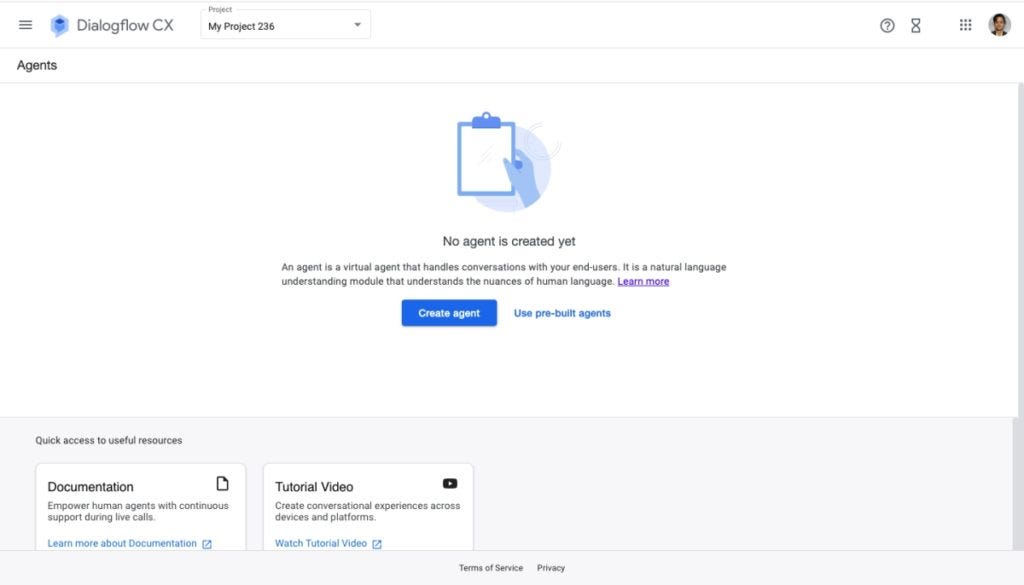
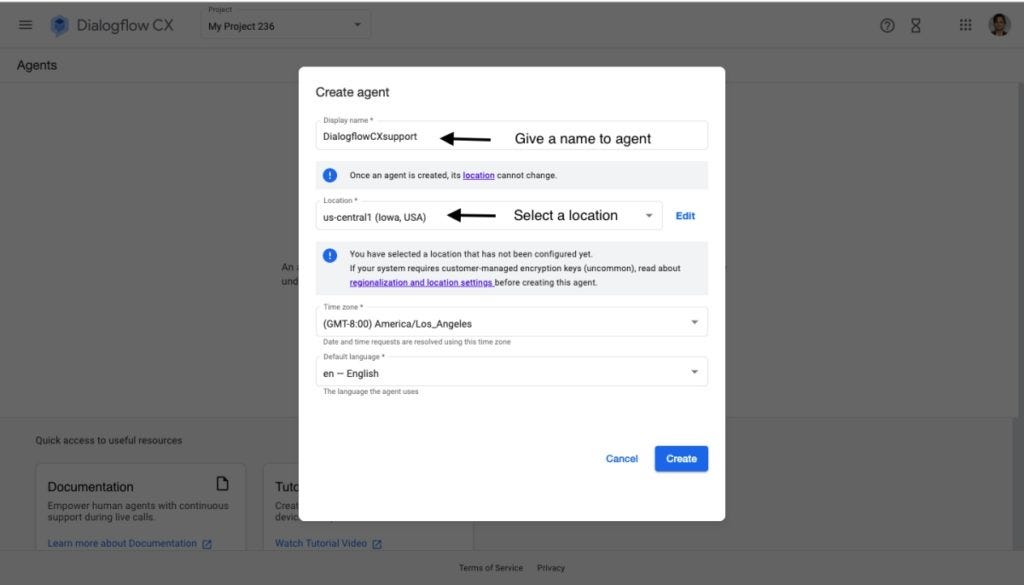
Before Dialogflow CX integration with Kommunicate, first make sure you have created a project and Dialogflow CX Agent from the Dialogflow CX console.
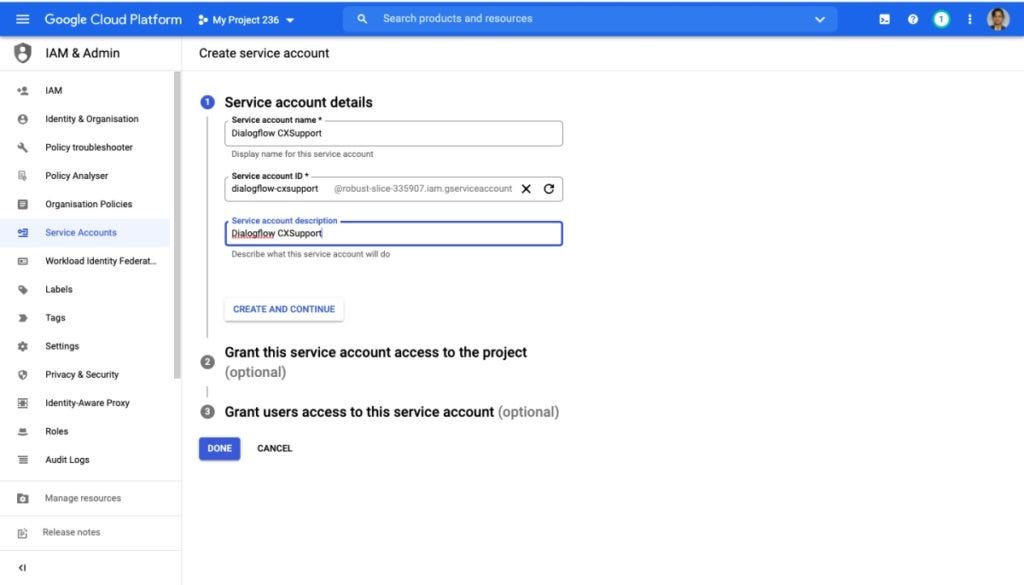
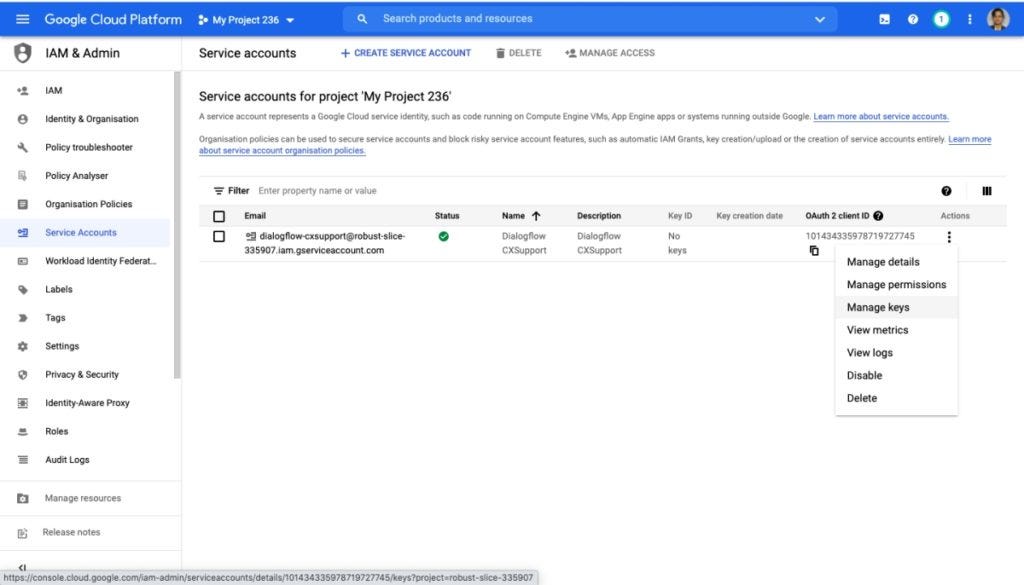
Then you have to enable the Dialogflow API for your project and create a service account key. Please refer to the links below.
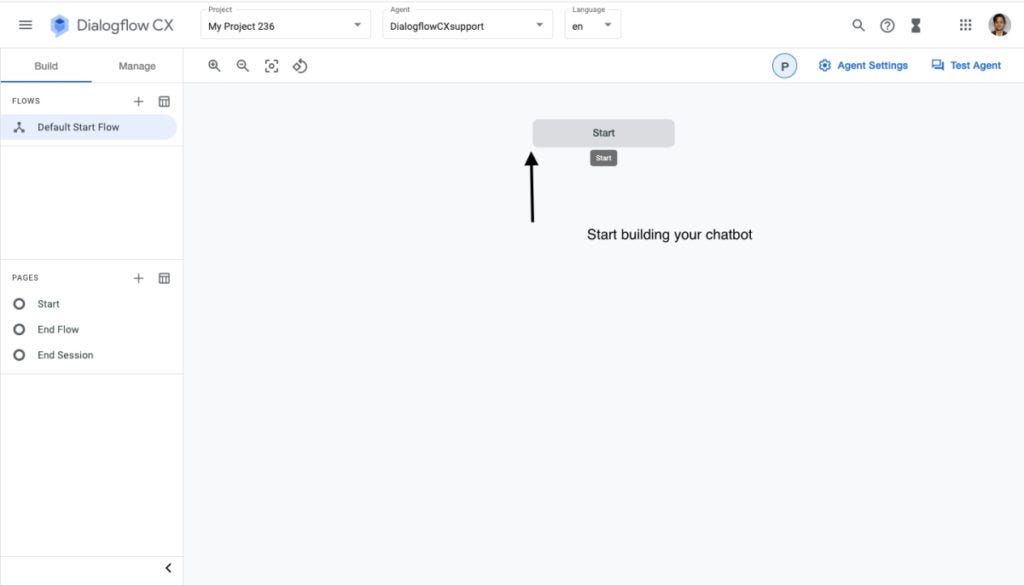
Build your Dialogflow CX chatbot as per your requirements. Once the chatbot building is completed, tap on the Agent Settings option to create a service account.
Create a Service Account
In the following step, you will be giving the ROLE to the service account, select Owner/Editor as a ROLE.
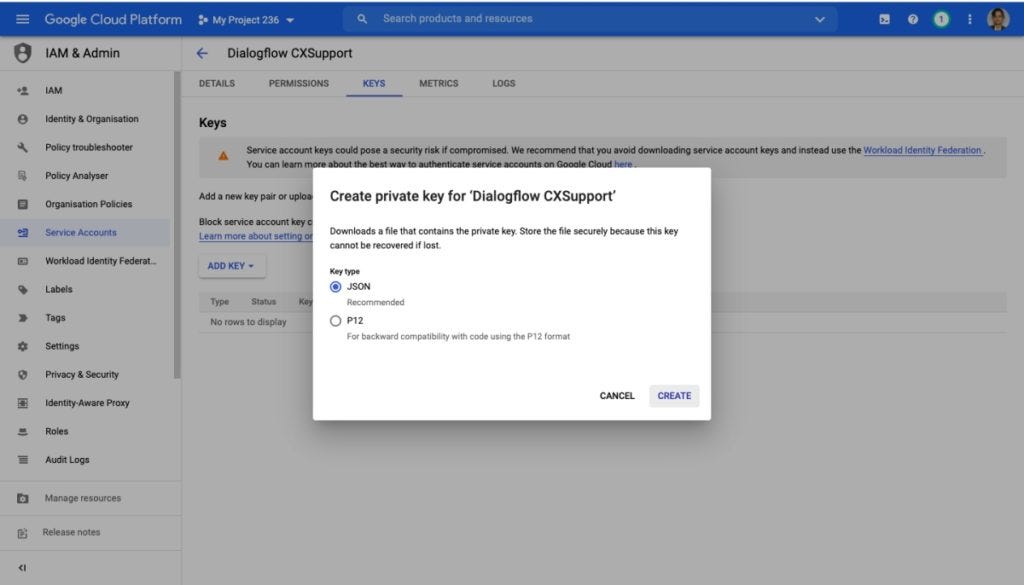
Once ROLE assignment is done, proceed to create a JSON key for Integration.
Create a JSON Key
Click on Manage Keys and Add a JSON key.
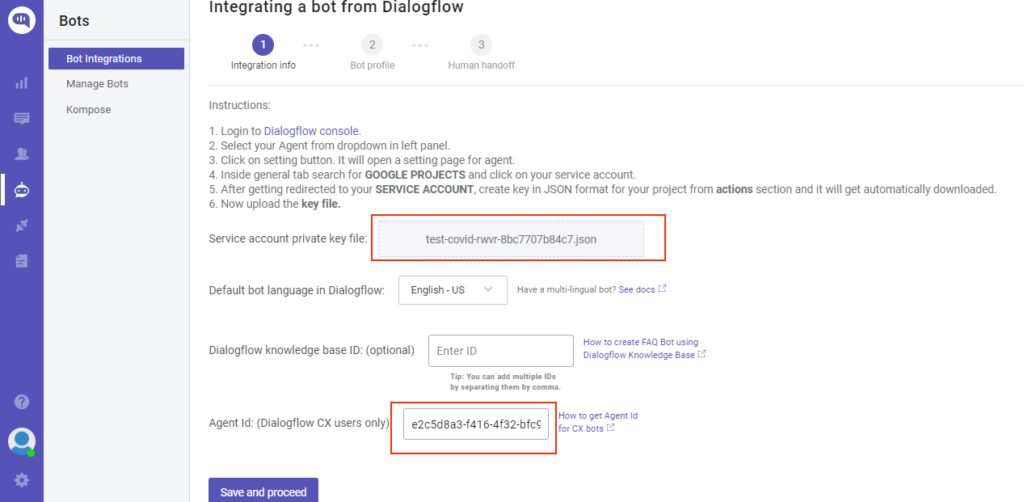
Once you click on CREATE, a JSON file download will start. Upload the service account key file in Kommunicate dashboard along with the AGENT ID.
To get the Agent Id:
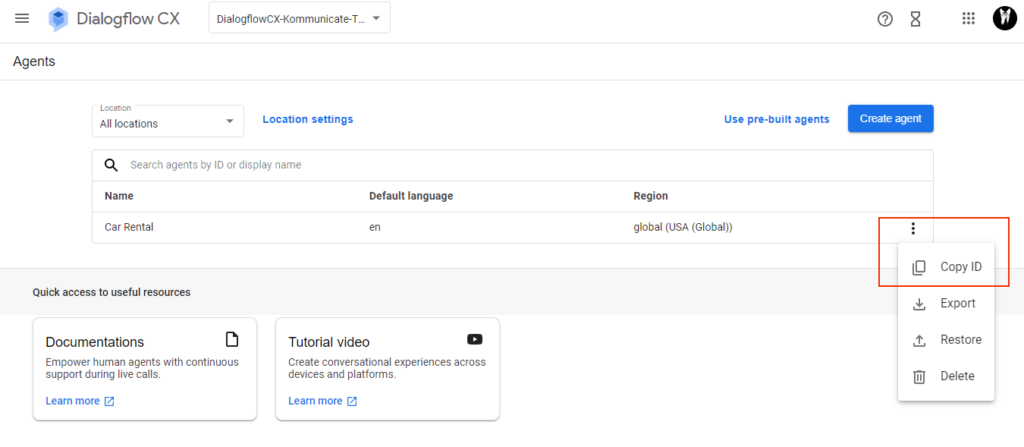
Go to Dialogflow CX console >> Select the Project >> In the Agent you have created ‘Copy ID’
It will be in the following format, projects/test-covid-rwvr/locations/global/agents/e2c5d8a3-f416–4f32-bfc9-d986d540abd here the Agent Id is e2c5d8a3-f416–4f32-bfc9-d986d540abdb
Copy the Agent Id.
Enter the Agent Id in Kommunicate Dashboard and then “Save and proceed.”
On successful integration, the bot will be given an ID(botId) and will be listed under the Manage Bots section. The botId will be used to identify the bot in the Kommunicate system.
You can use a similar method for Chatbot integration with Dialogflow ES too.
Now that you know how to integrate a Dialogflow Chatbot, it is time to add the Kommunicate chatbot onto your Shopify website.
Integrate Kommunicate Chatbot onto your Shopify website:
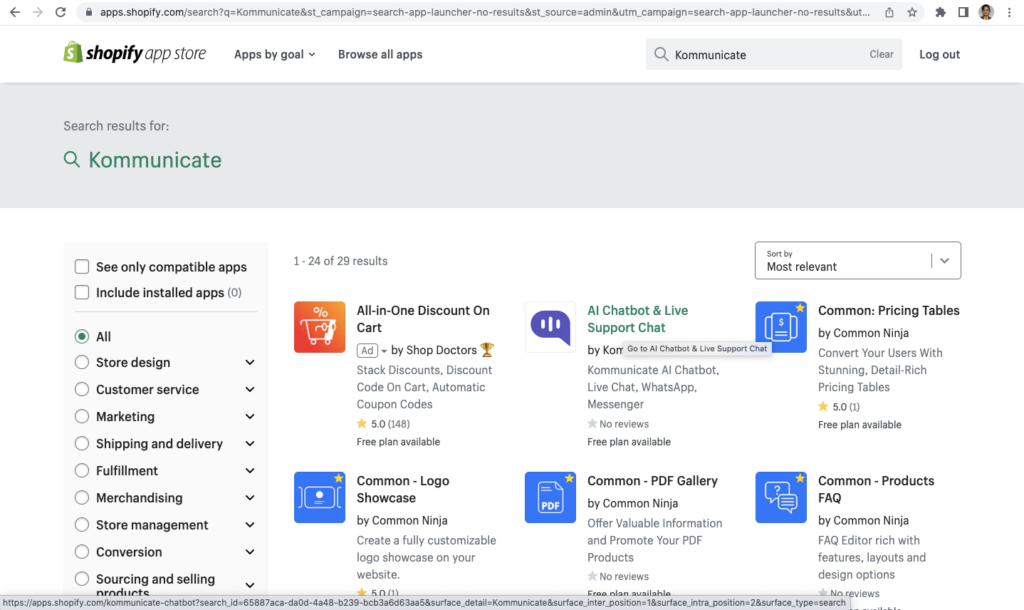
Step 1: Log into your Shopify account and click on the Apps tab. Search for the Kommunicate app in the search text bar.
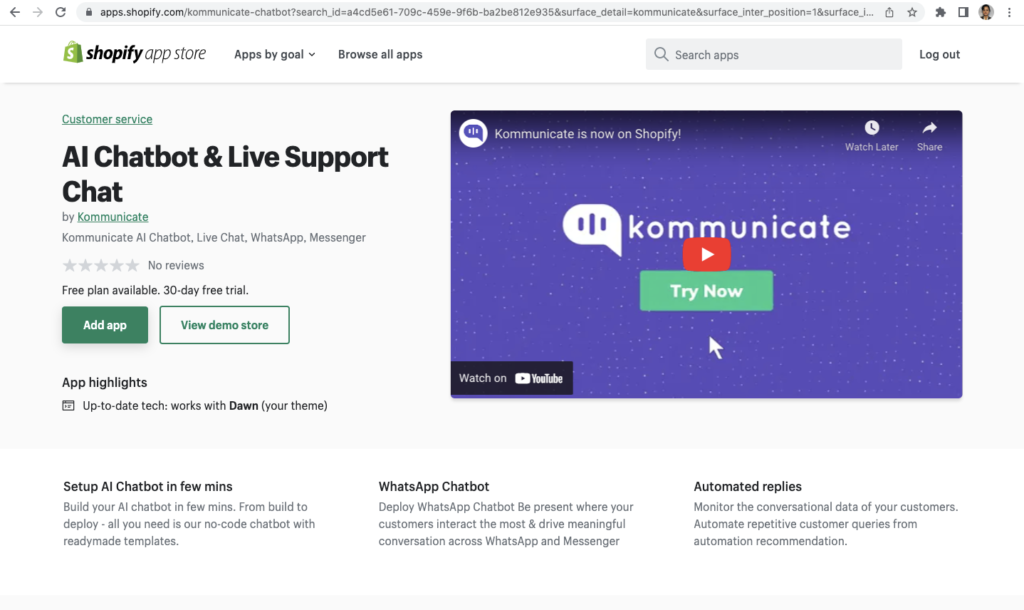
Step 2: After searching, you will see the Kommunicate app listed, click on it >> Add app.
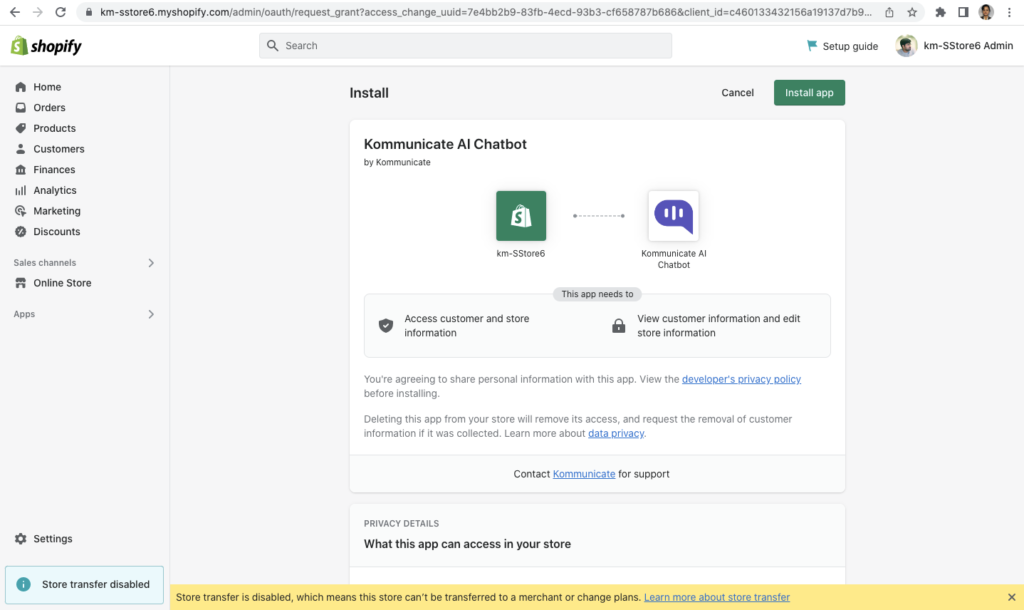
Step 3: Click on the Install App button available in the top right corner.
After clicking on the Install App, it will redirect you to the Kommunicate dashboard. Log into the Kommunicate account to finish the integration.
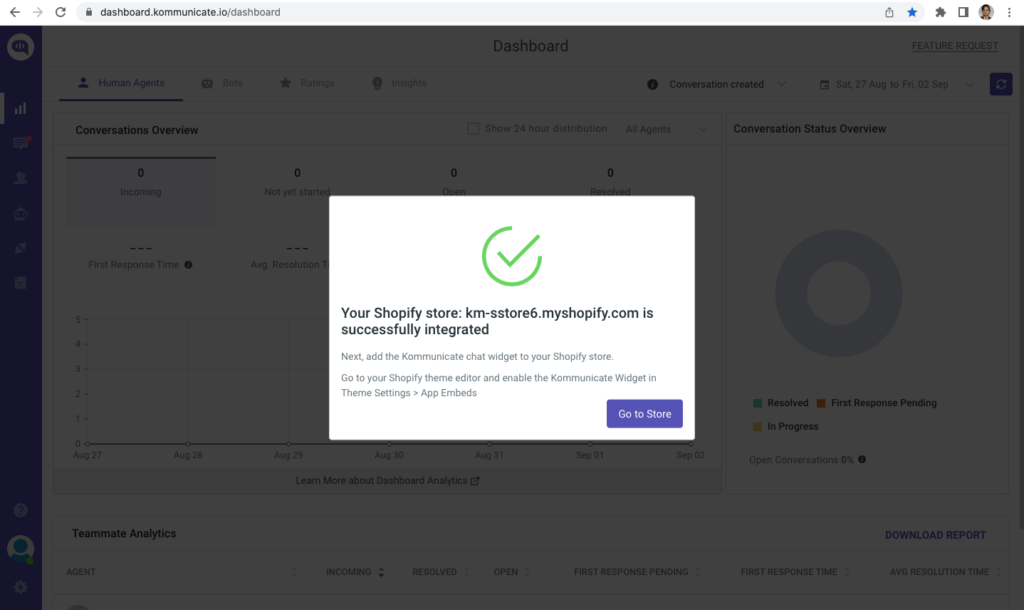
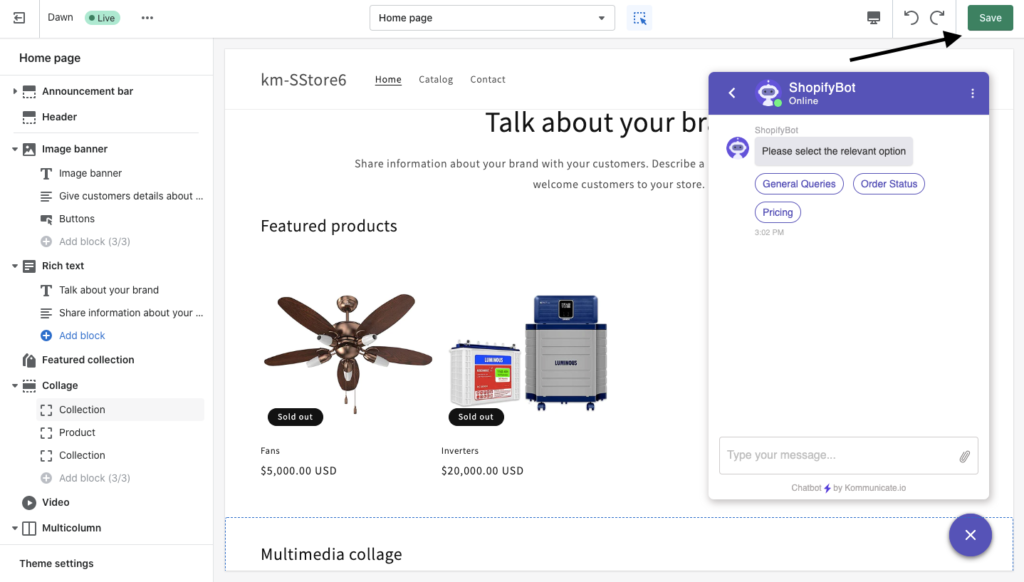
Step 4: Once you finish the integration, click on Go to Store and check the Kommunicate widget and Save the changes.
Now that the chatbot installation is complete, visit your store to check your chat widget.
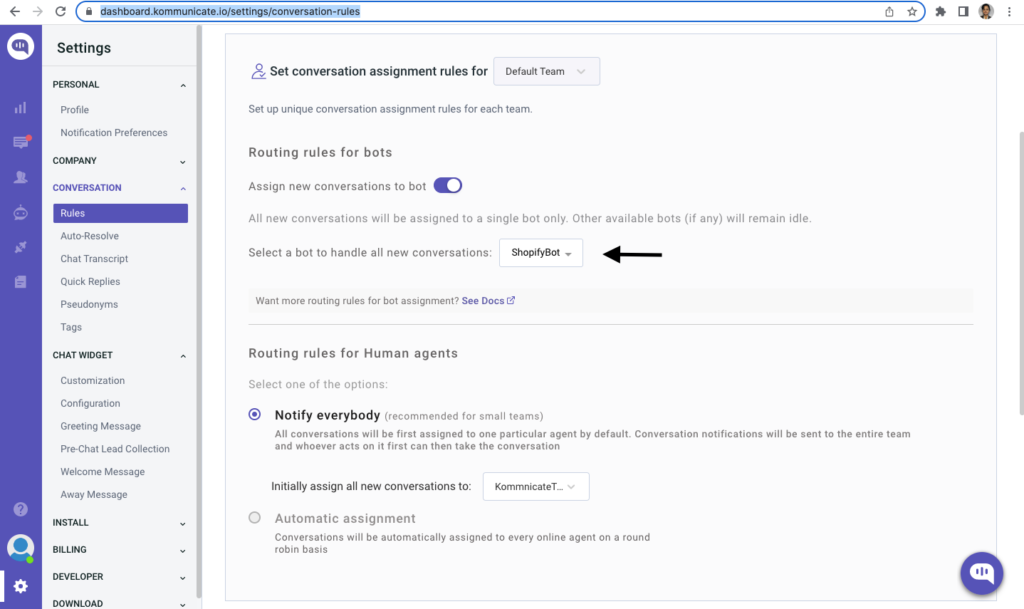
Do not forget to select your Dialogflow bot in the RULES section of the Kommunicate dashboard, so that you can enable the the same chatbot on your Shopify store.
I was doing sentiment analysis for a data journalism article for a bootcamp’s final project. The tweets are Indonesian tweets about Kominfo’s recent blocking of Steam (and some other overseas platforms). You can read my article here (it’s only in Indonesian though). By the way, I’m using Python on Google Colab.
At first, I was using TextBlob as explained here, but the result was bad. I was sure that at least for #BlokirKominfo tweets, it must be mostly negative. Yet, it was mostly neutral, or positive, depending on where you draw the lines (because TextBlob outputs polarity in range of -1.0 to +1.0). Well, TextBlob only supports English, so the tweets were translated into English. Also, TextBlob is rule-based, while state-of-the-art NLP uses neural network. But it’s not like I can just train my own neural network model in a few days. I’m a total noob at NLP. Luckily, Huggingface has a lot of pretrained model available for free, and there exists an Indonesian one.
So let’s get started.
1. Registering for a Twitter developer account
Twitter now provides an easy and free developer account registration. Of course, it will have a lot of limits. For example, the API calls you can do within 15 minutes is limited. You also can only query for the past 7 days. If you need more, you can upgrade your essential (basic) account by paying or by applying for an elevated or academic account. If you just need more API calls, go for the elevated one, since it’s still fairly easy. It also gives you access to V1 API. By default, you have access to V2 API and it’s still incomplete, for example, you can’t get trending data. If you need to go further than 7 days, go for the academic one, but it’squite hard, since youneed to have a legit research as a researcher or graduate student.
Twitter developer platform home page
Okay, so how to get a developer account? Go to https://developer.twitter.com/ , click sign up at the upper right corner, then login with your Twitter account. You’ll then get a form. Fill the form, submit it, and you’re done. Make sure the save all of the tokens and secrets. But here we’ll only be using the bearer token.
2. Get tweets
First, you need to install Tweepy. You can do this using pip.
pip install tweepy
If you’re using google colab or jupyter, put a “!” at the front.
!pip install tweepy
Next, import it. “tw” here is just an alias to make it shorter.
import tweepy as tw
Now we create a client object using the bearer token. The wait_on_rate_limit argument being True tells Tweepy to wait for cooldown if you went past API rate limits.
Then we can finally query tweets. We’ll be using search_recent_tweets. If you have academic account or paid account that supports past 7 days, you can use search_all_tweets instead.
result = client.search_recent_tweets(
    query,
    start_time=start_time,
    end_time=end_time,
    max_results=max_results,
    next_token=next_token,
    tweet_fields=tweet_fields
)
2.1. Arguments explanation
query would be your search query; it’s a required parameter. You can add “-is:retweet” at the end of your query to exclude retweets.
start_time and end_time defines the time window of your search. They’re in ISO 8601/RFC 3339 datetime format, which is YYYY-MM-DDTHH:mm:ssZ. It’s in UTC, so make sure you subtract your timezone difference to it. West Indonesia time is UTC+7, so today at 00:00 would be yesterday at 17:00 in UTC.
max_results is the max number of tweets in one API call. You can only have it 100 at most. If your query yields more than that, you’ll get a “next_token” attribute in the result’s metadata (not null). You can provide this next_token to get the “next page” of your query. If there’s no more tweets left to retrieve, next_token will be null. This should perfectly fit in a do-while loop, but python doesn’t have that, so let’s just set up a flag.
first = True
next_token = None
data = [] # This is just an example of combining the result
while first or next_token:
    result = client.search_recent_tweets(...)
    data = result.data
    next_token = result.meta["next_token"]
    # This is just an example of combining the result
    data += data
    ...
tweet_fields tells the API which tweet attributes/fields to retrieve. In Tweepy, it’s a list of strings or a comma-separated string of field names. For example, if you want to retrieve the like count etc, you’ll want the public_metrics field. In my project, I used these fields:
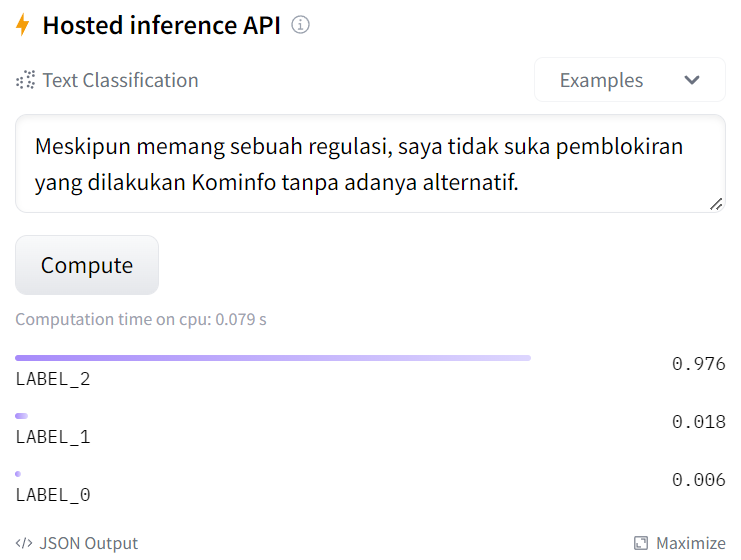
Next, we’ll be using BERT to do sentiment analysis. We’ll use this model by mdhugol. It’s a sentiment classification model based on IndoBERT. It classifies text into positive, neutral, and negative ones (in this order of label). The website provides a field for you to try the model easily.
Field to try the model in Huggingface; LABEL_2 means negative
3.1. Init
Okay, for the model we’ll need to install transformer and emoji. Transformer package will be for the model, while emoji will be used to convert emojis into text that represents it. Just like before, add “!” at the front if you’re using google colab or jupyter.
pip install transformers emoji --upgrade
Next, we import them and define some constants. In addition to those packages, we’ll also use regex and html for cleaning.
from transformers import AutoTokenizer, AutoModelForSequenceClassification
from transformers import pipeline
import emoji
import re
import html
Before we do the sentiment analysis, we first need to clean the text. It’s not much, just removing or replacing some stuff. This function is based on preprocessing of indoBERTweet by indolem. It replaces user tags with @USER and urls with HTTPURL.
In addition to that, I’ll be replacing emojis with their text representation using emoji.demojize so the model will take emojis into account when determining the sentiment. However, it makes tweets longer, specially on those that spammed emojis. Meanwhile by default the model doesn’t support very long text. Twitter already has tweet length limit and it fits the model, but due to converting emojis, some tweets get very long. So I’m mitigating this by limiting repeating emojis to 3 repetition at most. I use regex to do this.
Lastly, I unescape HTML-escaped characters using html.unescape. When using TextBlob, I found that some tweets uses escaped HTML characters. It made TextBlob throw an error. Not sure what it does to BERT, but I’ll just unescape them.
Anyway, here’s the full preprocessing functions. Just use the preprocess_tweet function.
def find_url(string):
    # with valid conditions for urls in string
    regex = r"(?i)b((?:https?://|wwwd{0,3}[.]|[a-z0-9.-]+[.][a-z]{2,4}/)(?:[^s()<>]+|(([^s()<>]+|(([^s()<>]+)))*))+(?:(([^s()<>]+|(([^s()<>]+)))*)|[^s`!()[]{};:'".,<>?«»“”‘’]))"
    url = re.findall(regex,string)
    return [x[0] for x in url]
def preprocess_tweet(tweet):
    tweet = emoji.demojize(tweet).lower()
    tweet = re.sub(r"#w+", "#HASHTAG", tweet)
    tweet = re.sub(r"(:[^:]+:)1{2,}", r"111", tweet)
    tweet = re.sub(r"(:[^:]+:)(:[^:]+:)(1+2+){2,}", r"121212", tweet)
    new_tweet = []
    for word in tweet.split():
        if word[0] == '@' or word == '[username]':
            new_tweet.append('@USER')
        elif find_url(word) != []:
            new_tweet.append('HTTPURL')
        elif word == 'httpurl' or word == '[url]':
            new_tweet.append('HTTPURL')
        else:
            new_tweet.append(word)
    tweet = ' '.join(new_tweet)
    tweet = html.unescape(tweet)
    return tweet
3.3. BERT model
Okay, now that the text are good, we can do the sentiment analysis. We create a tokenizer and a model using the name of the pretrained model (pretrained_id). It will download from Huggingface so you need internet connection. It’s quite big, but Google Colab runs on Google’s servers and uses Google’s fast connection. Next, we create sentiment-analysis pipeline using the model and tokenizer.
Then, we just use the pipeline and convert the result label.
text = preprocess_tweet(text)
result = sentiment_analysis(text)
status = label_id[result[0]['label']]
score = result[0]['score']
print(f'Text: {text} | Label : {status} ({score * 100:.3f}%)')
That’s it. Really. Sentiment analysis done. Huggingface pretrained models made it very easy to do. Well, if you can find the right model that fits your use case, that is. Otherwise you’ll have to adjust it or even retrain the model.
4. Using the Proper Model for the Tweet Language
Despite the query being an Indonesian event, not all tweets are in Indonesian. We can use the “lang” field of the tweet to know what language it is in (according to Twitter). With that, we can do sentiment analysis of a tweet using the proper model for the tweet’s language. In my project, I used BERTsent by rabindralamsal for English tweets. However, do note that different models may use different labels. BERTsent, for example, also classifies tweets into positive, neutral, and negative, but in the opposite order. In the Indonesian model, LABEL_2 means negative, but in BERTsent, it means positive. Here’s the constants by the way:
Well, that’s about it. It took a while figuring out how to do it, but once you know how, it’s actually rather easy. But of course, I didn’t do much text preprocessing. I didn’t make the model myself either. Actually, I don’t even have NLP basics, so please correct me if I wrote something wrong. Or, maybe, if you want to add something, please just do so in the comments. Thanks for reading.
WhatsApp For Business API 2022 — Complete Guide (Chapiter II)
Everything you need to know about WhatsApp chatbots in one place.
WhatsApp For Business Guide — Chapiter 2
1 — Setup your WhatsApp For Business account
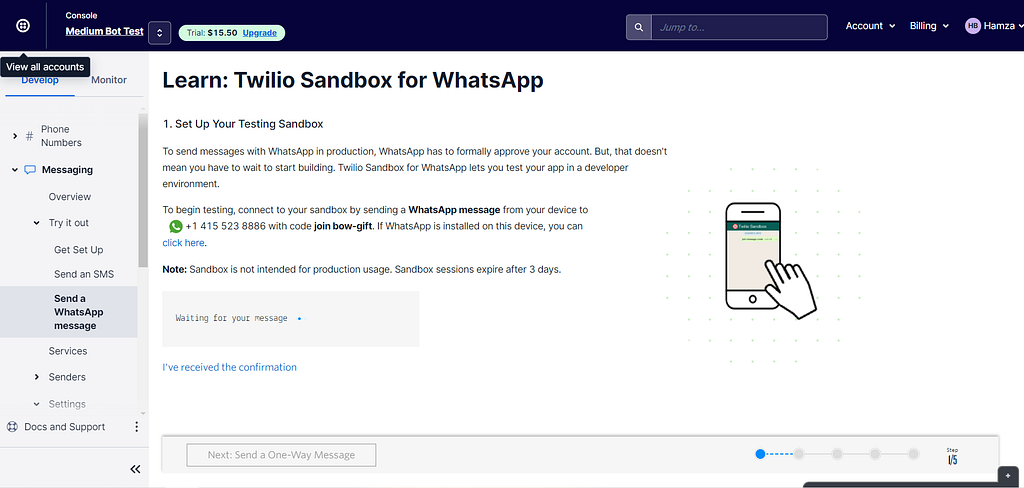
In this tutorial, we will use Twilio as our main provider for this use-case. The biggest advantage using Twilio is the ability to perform tests using their shared WhatsApp For Business phone number. Once we create our account we will be able to join a channel and start messaging the chatbot.
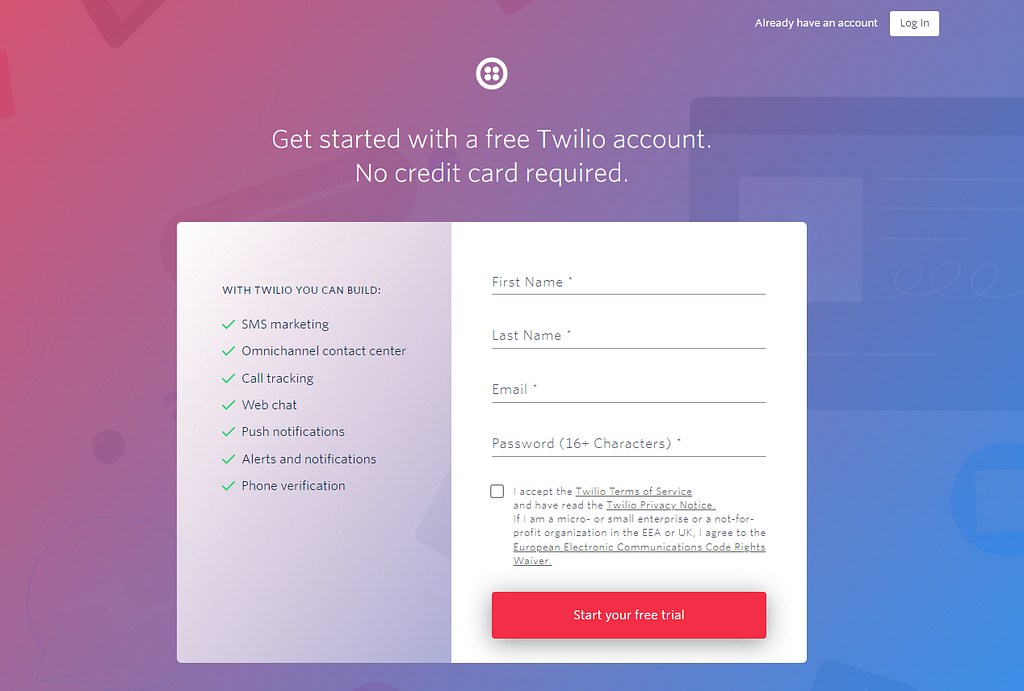
2. Go the console page and click on Create New Account
Step 2 : Create new account
3. Let’s give a name to our account, I used : “Medium Bot Test”
Step 3 : name your project
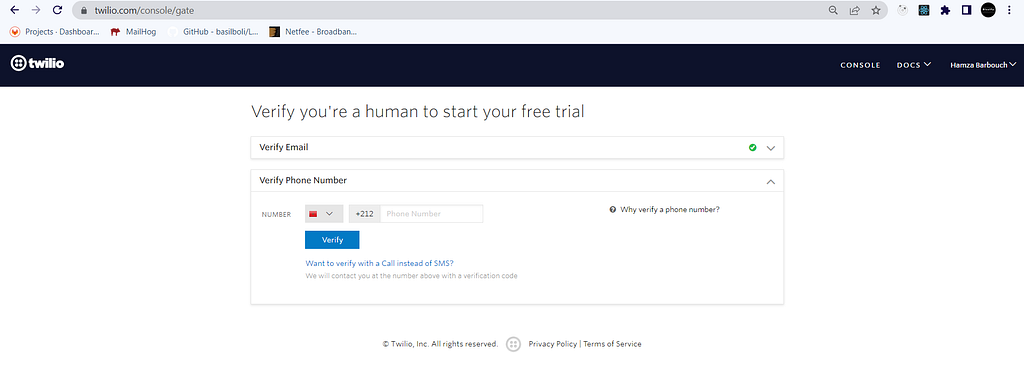
4. Verify your email or phone number in order to continue the process
Step 4 : verify your identity
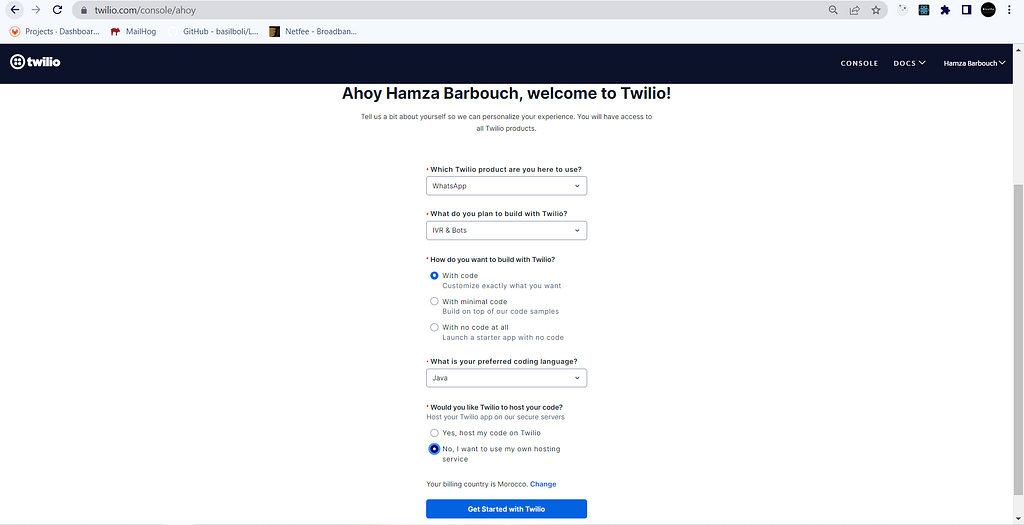
5. Answer these questions and make sure you use the same input
Step 5 : fill out the questions
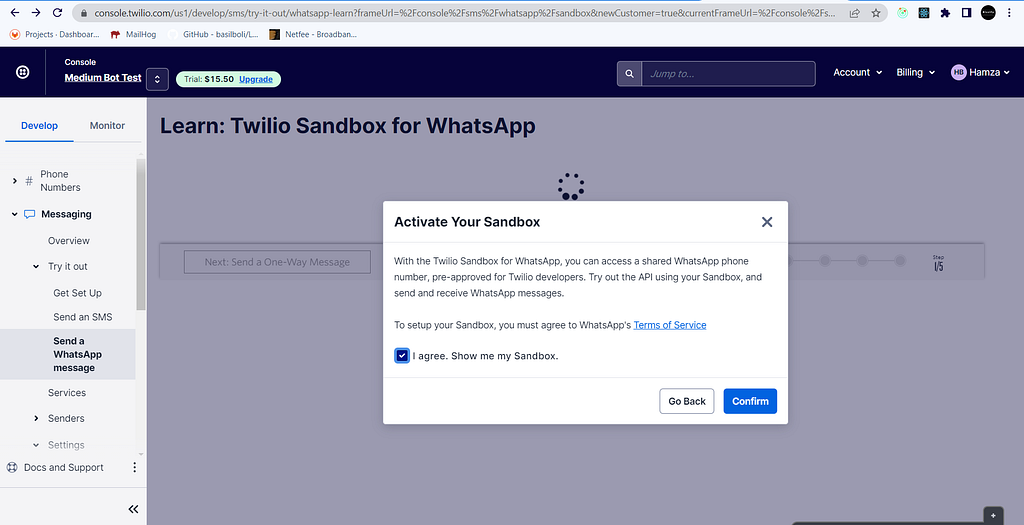
Tadaaa!! we have successfully created a free account with $15.50 credits.
6. Activate the sandbox by clicking on confirm
Successful account creation
7. Send your first message to the bot
Twilio Sandbox for WhatsApp — send your first message
To begin testing, we will send a WhatsApp message from our device to +1 415 523 8886 with code join bow-gift.
Joining private channel in WhatsApp bot
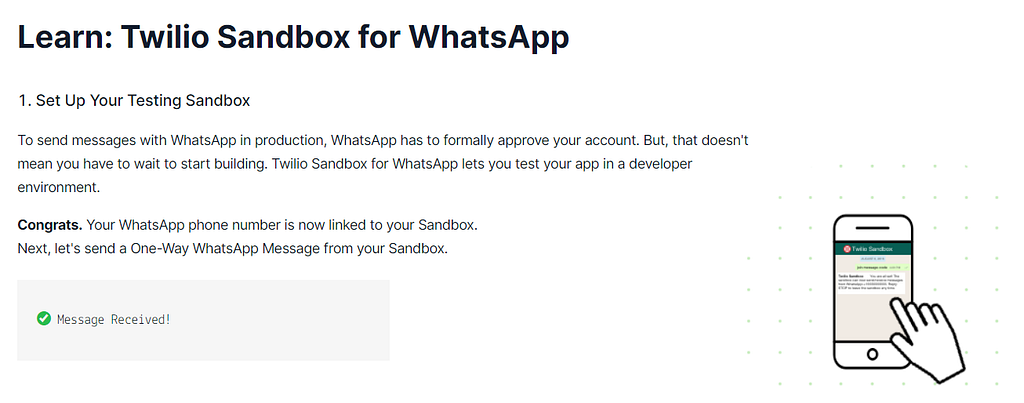
8. Channel connection confirmation
Message received on Sandbox successfully.
2 — Generate your back-end application
The main component of this project is the back-end, it’s where all the processing occures. For this particular exercice, we will use JHipster to generate our back-end application in Spring Boot. It will speed up the development for a first MVP.
JHipster requirements :
Node.js (LTS)
Java 11 (JDK)
Make sure you have Node.js and Java 11 already downloaded and installed properly and then go to this tutorial to install JHipster : https://www.jhipster.tech/installation/
We will consider in this tutorial that you have already installed all requirements alongside with JHipster.
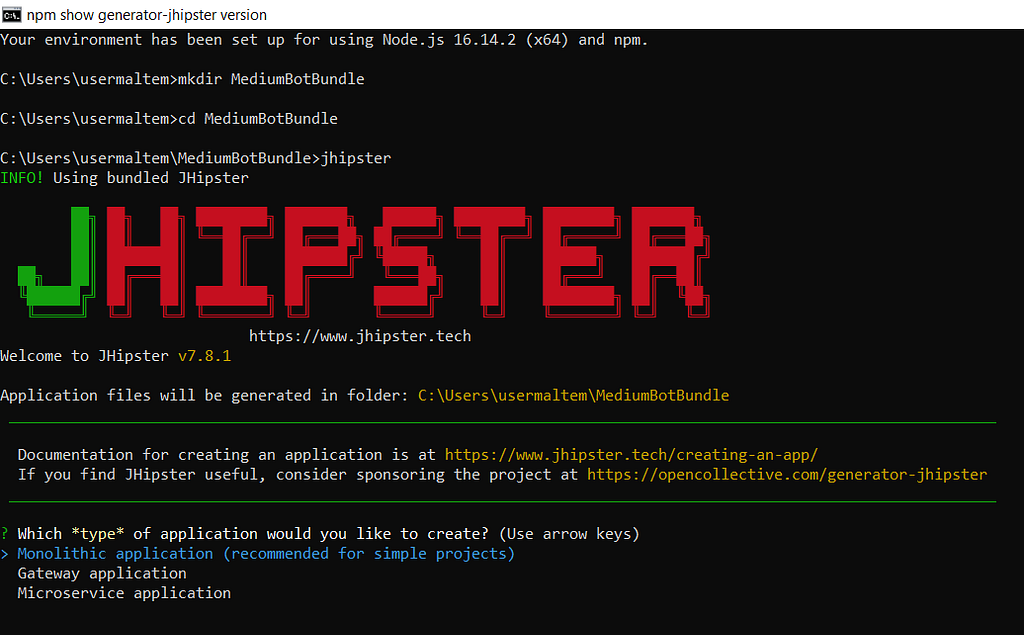
Initiate project in JHipster via CMD
Once you launch Node.js command line, create a folder called MediumBotBundle or whatever name that suits you, after that, run this command to start JHipster :
cmd -> jhipster
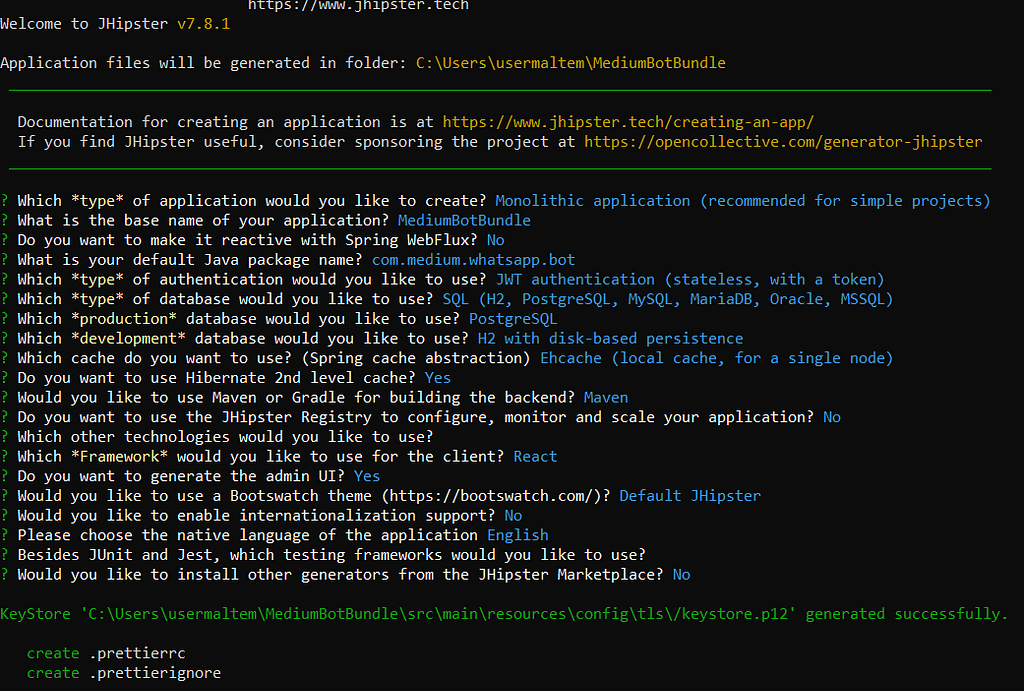
After that, the generator will ask you about the type of application, select Monolithic application.
Important : make sure you select the same options as shown in the image
After few minutes, the application will be generated and you will be able to start development. I personally use Intellij Community Edition as my main IDE and I highly recommand it for your future projects.
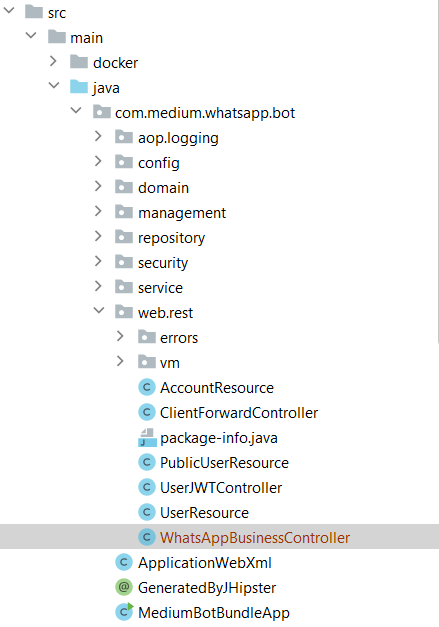
JHipster project structure
Create a class named “WhatsAppBusinessController” in web.rest package. The purpose of this class is to intercept all requests sent by Twilio to our WebHook when a user communicates with the bot.
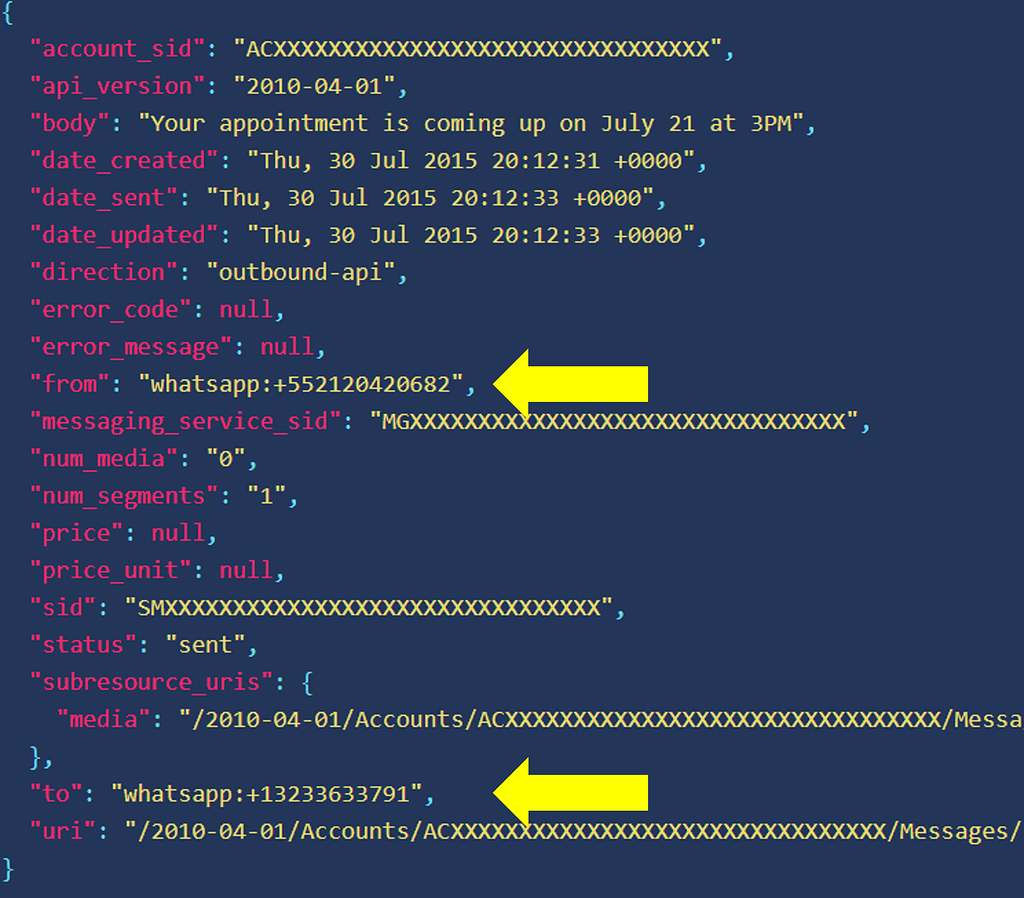
Below is the JSON received in our interceptor :
JSON structure of Twilio message
We have 3 main attributes from this JSON message :
Users shouldn’t be guessing which option is available or not when they are searching for something.
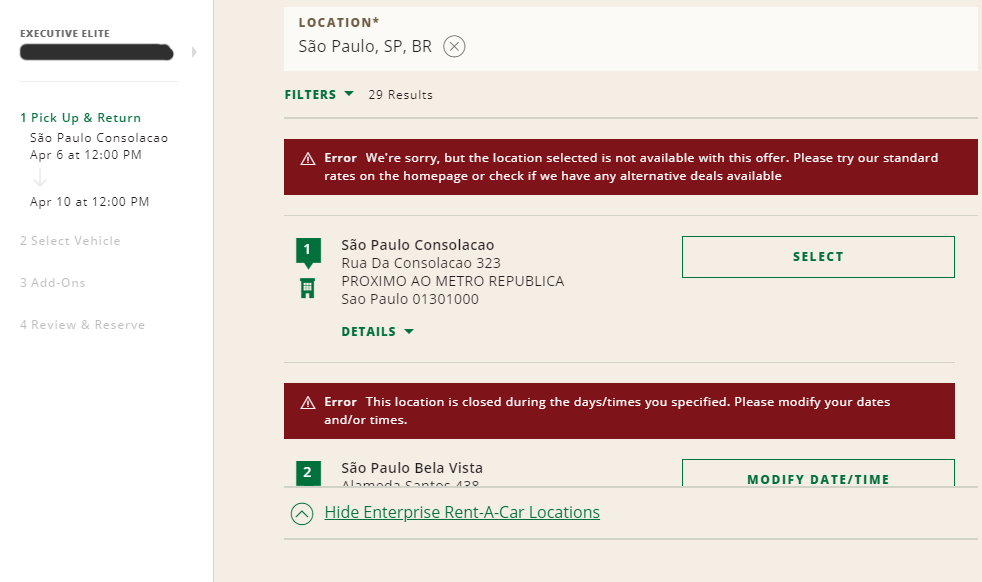
Take this search as an example. National Car Rental website shows the user all the locations available to book a car for the dates already selected, but when you try to select one of them, two errors appears: either the store doesn’t open at the select date and time or the store is not valid for the promotion code added.
As you can see, there are many stories in the São Paulo (City in Brazil) area that supposedly is “available” to book (the red error only shows after your try to book), but after 2 minutes of clicking on all of them, only 2 or 3 were actually accepting bookings at given filters.
The only exception I’d like to mention is when the unavailable option is placed in the results as a marketing strategy.
As an excellent example, I can show Booking.com — which by the way does an awesome job with their UX.
They do show unavailable options (but notice here that the message about it is already visible to the user without having to click, it doesn’t leave the user confused thinking that’s available), but to induce a sense of FOMO, i.e., fear of missing out. They are indirectly saying “hey, look, this hotel is sold out because you were late, act now or you’ll miss more opportunities”.
Never use fonts too light in small texts, and always check with web accessibility evaluation tools if your design is compliant to WCAG rules to avoid law suits
3) FORGET TO DISABLE IT AND LACK OF FEEDBACK AFTER CLICKING ON A BUTTON.
Sometimes we need to load content after the whole site is already there. But if that new content pushes everything down when being placed, you got a UX problem here.
Since the interface is already loaded, the user might be in the middle of an action, a click, drag, and drop. And having the content pushed down might cause unexpected behavior if the user clicks somewhere at the same moment that the new content appears.
The example below shows a shopping cart after adding a product. The e-commerce then loads related products on top of the cart after the content has already been loaded. If the user tries to change the quantity of the first product in the cart right at the moment that the related products are being loaded, it ends up clicking on one of them and going to the product page, frustrating the experience of buying that first product (Yeah, I did that many times, I always forget to wait for the related products, but this shouldn’t be an issue the user needs to deal with).
The Role of AI in the Transformation of the Insurance Industry — DATAVERSITY
The insurance industry has been traditionally conservative with technology advances and hesitant to adopt new technologies. However, times are changing, and artificial intelligence (AI) is gaining much attention from insurance companies, who are starting to realize the important role that AI can play in their operations.
AI in the insurance industry is poised to bring another wave of disruption and innovation to this $5.3 trillion global market.
GET UNLIMITED ACCESS TO 140+ ONLINE COURSES
Choose from a wide range of on-demand Data Management courses and comprehensive training programs with our professional subscription.
According to McKinsey & Company, there’ll be 1 trillion connected devices by 2025. This will help collect tons of data to enhance the power of AI in the insurance industry even further.
Competitors are taking every possible step to claim their digital market share by investing huge amounts in digital transformation. And one of the key points in this process is how to reduce costs and expenses.
Top 5 Use Cases of AI in the Insurance Industry
Let’s look at the capabilities of AI in the insurance industry.
1. Faster Claims Processing With NLP
Natural language processing (NLP) refers to algorithms that can understand human speech or text from written documents and convert them into plain language or other formats.
It’s essentially a form of machine learning that enables computers to understand human language without having to write programming instructions for each word or phrase.
The claims management process can be very costly, both in terms of time and money. Up to 50%-80% of premiums ‘ revenues can be eaten up by this process, which is largely paper-based and rarely digitized. That’s where NLP can save resources for insurance companies.
Many industries already use NLP:
However, the use cases of NLP and AI in the insurance industry are still evolving.
For example, as part of its Intelligent Production platform, Swiss Re is using NLP to automate some parts of:
Claims management processes
Customer communication
Underwriting
2. Rapid Document Digitization with OCR
The first step to any data analytics project is collecting and organizing your data, which can be time-consuming and tedious for large organizations.
One way to automate this process is to use optical character recognition (OCR) software, which converts scanned images into text that can be easily searched by keyword or indexing software.
Image recognition is one area of AI in the insurance industry that can save a lot of money. In fact, it can drive up to 80% in cost savings for individual processes.
Some of the use cases for OCR include:
Here’s an example of how OCR works:
An insurer could use OCR to scan documents from claims files from multiple sources. The sources can be medical records from doctors’ offices, police reports from law enforcement agencies, or claims forms filed by clients.
Then, they input the text into a central database where it can be analyzed by machine learning algorithms and compared against other similar documents.
3. Insurance Fraud Detection and Prevention
Insurance fraud is a major industry problem, but AI can help companies detect fraudulent claims before they become a significant issue.
A recent study by the Federal Bureau of Investigation revealed that insurance fraud (non-health insurance) costs U.S. insurance companies close to $40 billion annually.
AI can analyze patterns in past data and determine whether something looks suspicious. AI-powered systems can analyze thousands of data points per second and detect anomalies more accurately than humans ever could alone.
Here’s how AI can help in insurance fraud detection and prevention:
4. Accelerated Claims Adjudication with Visual Image Recognition
AI can analyze images, which makes it a valuable tool for insurance companies. Insurance claims adjusters are often asked to evaluate photos of damaged property or vehicles to determine what needs to be repaired or replaced.
Insurance companies can use machine learning to exploit behavioral data, such as facial expressions or the tone of voice, at the moment of underwriting.
This is especially common in life insurance or health insurance, where it’s been estimated that over 40% of risk information can be gathered from behavior monitoring alone.
However, human error often leads to inaccurate estimates. AI-based claims management systems can quickly and effectively process:
This allows organizations to make more informed decisions about their claims processes and ultimately improve customer satisfaction.
5. Improving Customer Experience
By leveraging conversational AI, insurers can automate repetitive tasks such as answering questions about policy features or claims to improve their customer experience.
AI-driven chatbots can:
Insurance companies can also use technology such as predictive text analytics that uses machine learning algorithms. They can analyze past customer conversations or unstructured data like emails or social media posts.
Conclusion
Advancements in machine learning, deep learning, and AI are making their way into the insurance industry and changing how enterprise insurance software is built. This, in turn, will help to reduce defensibility among traditional enterprise insurers and increase competition.
There’s great potential to innovate with AI in the field of insurance. That’s because the proliferation of data makes it easier to predict fraud, mitigate risk exposure, provide more personalized policies, and settle claims more quickly.
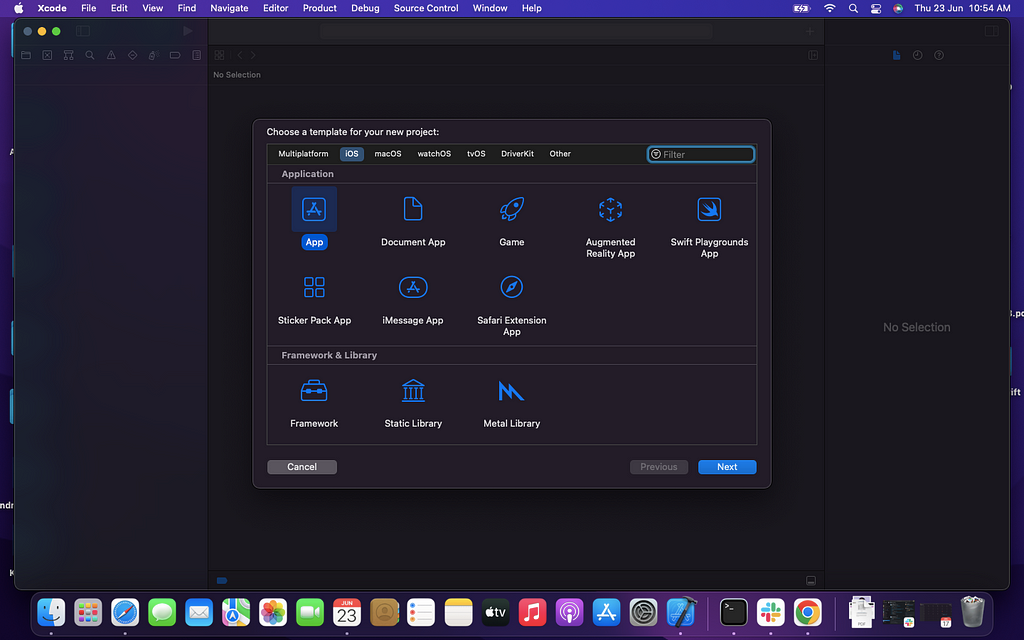
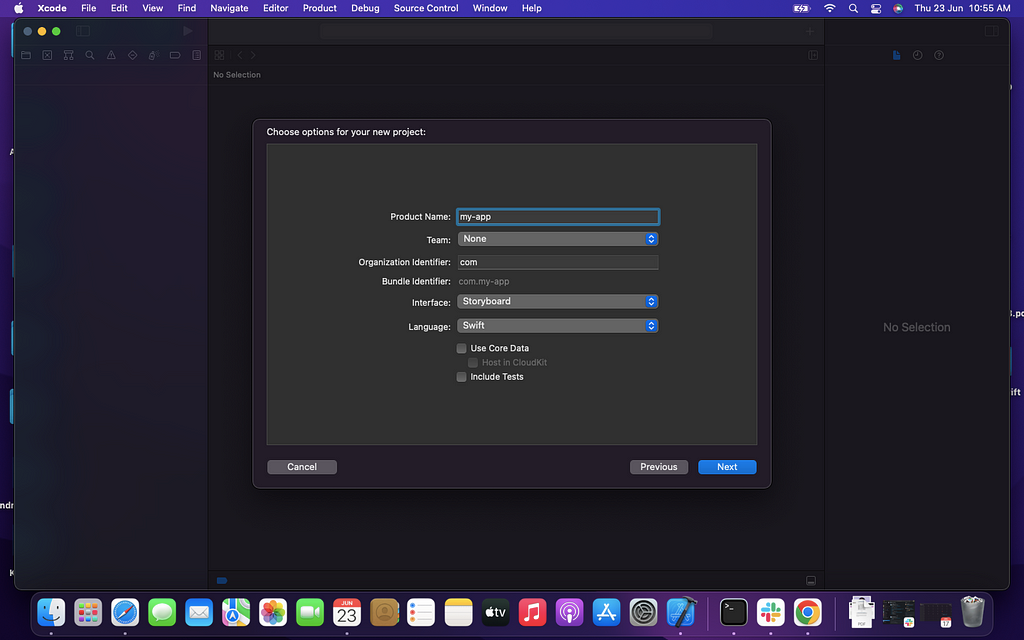
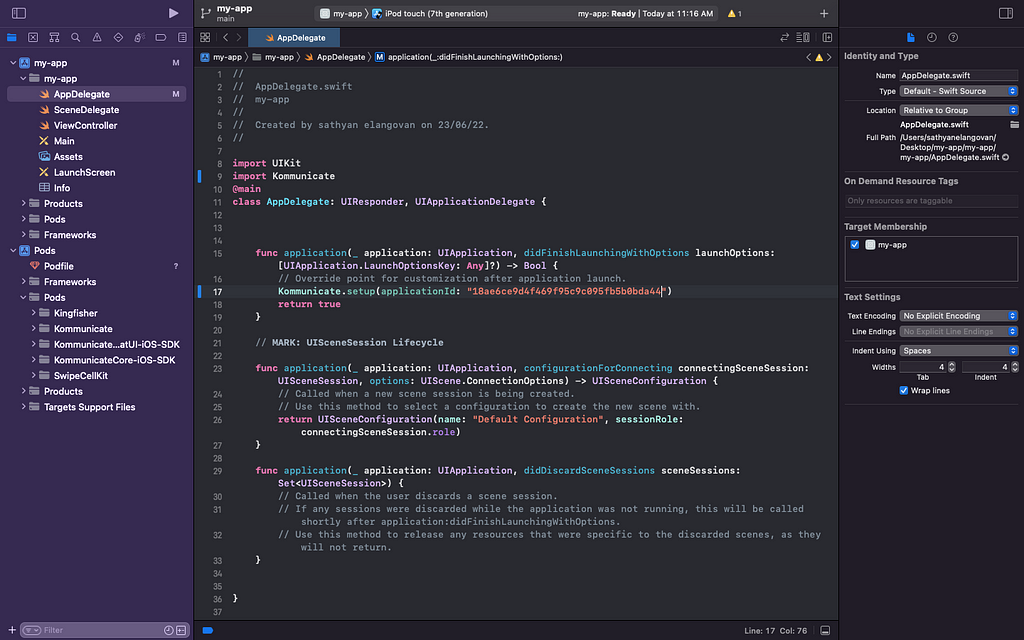
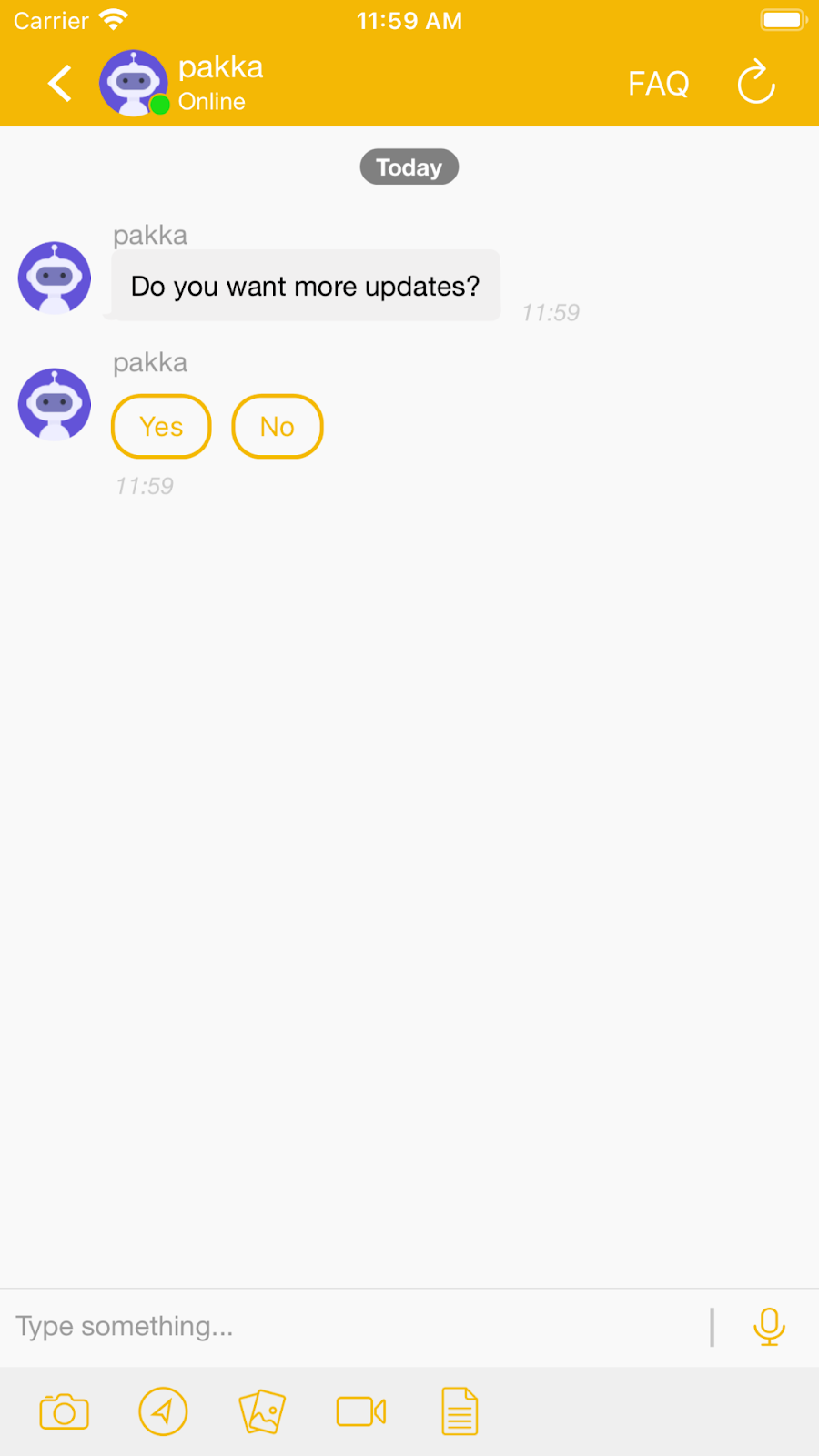
In this article, we will be sharing steps to building an iOS chatbot with Kompose. We will teach you everything you need to build a sample chatbot using Kompose for an iOS app.
Step by Step Guide to Building iOS Chatbot with Kommunicate
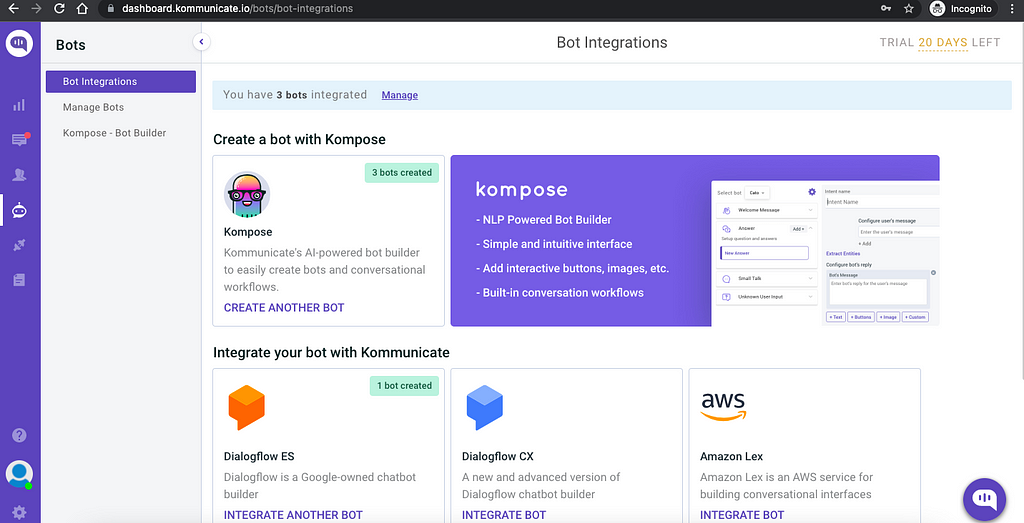
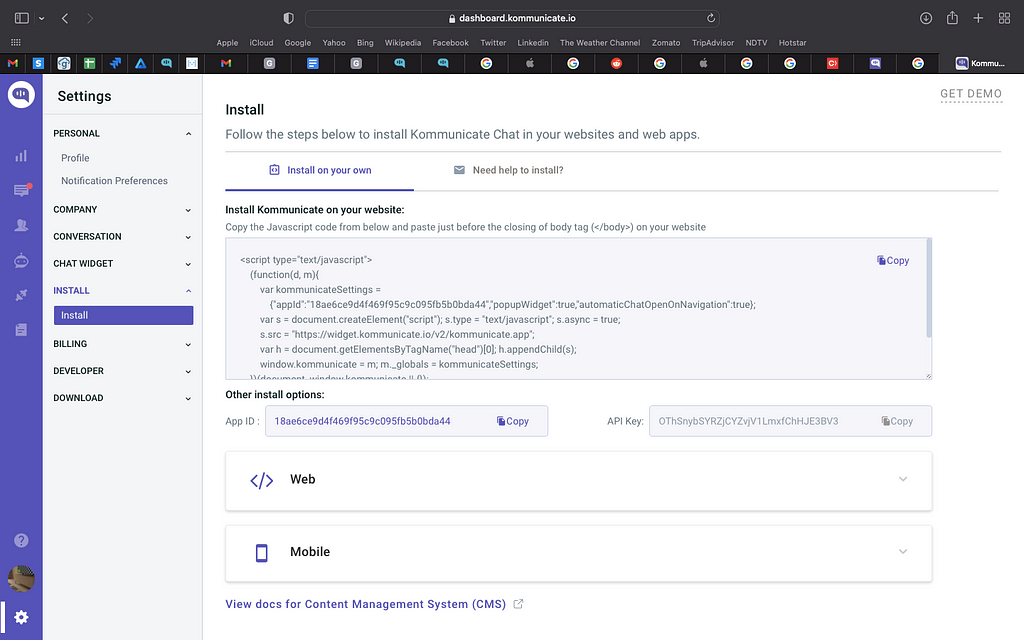
Next, log in to your Kommunicate dashboard and navigate to the Bot Integration section. Locate the Kompose section and click on Integrate Bot.
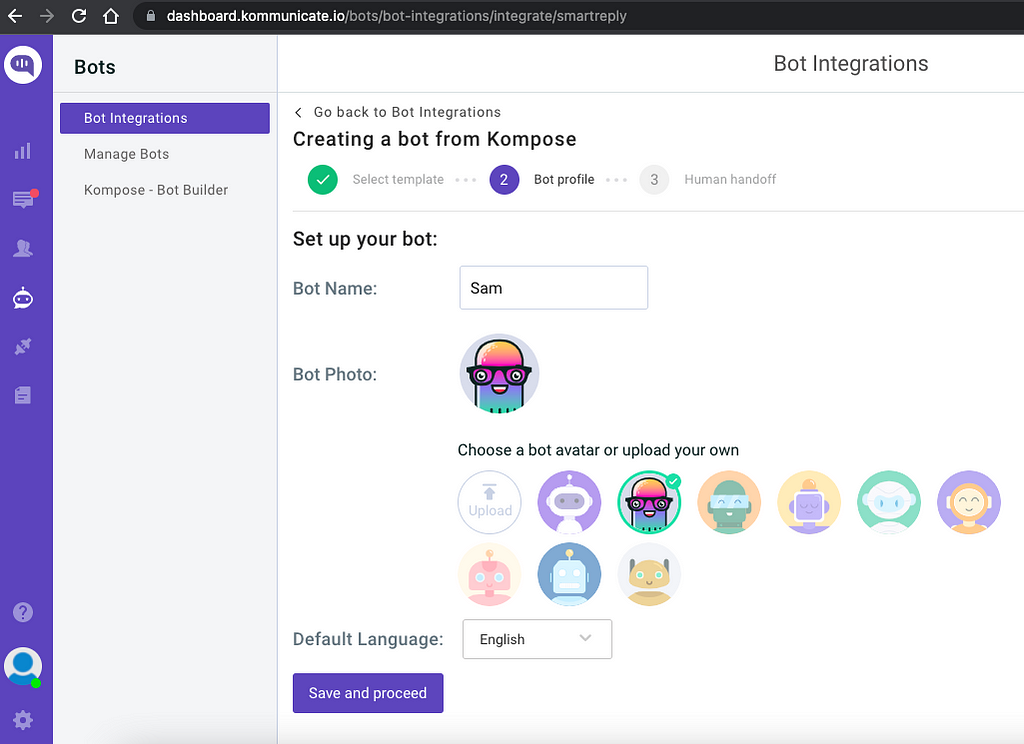
If you want to build a bot from scratch, select a blank template and go to the Set up your bot section. Select the name of your bot, your bot’s Avatar, and your bot’s default language and click “Save and Proceed.”
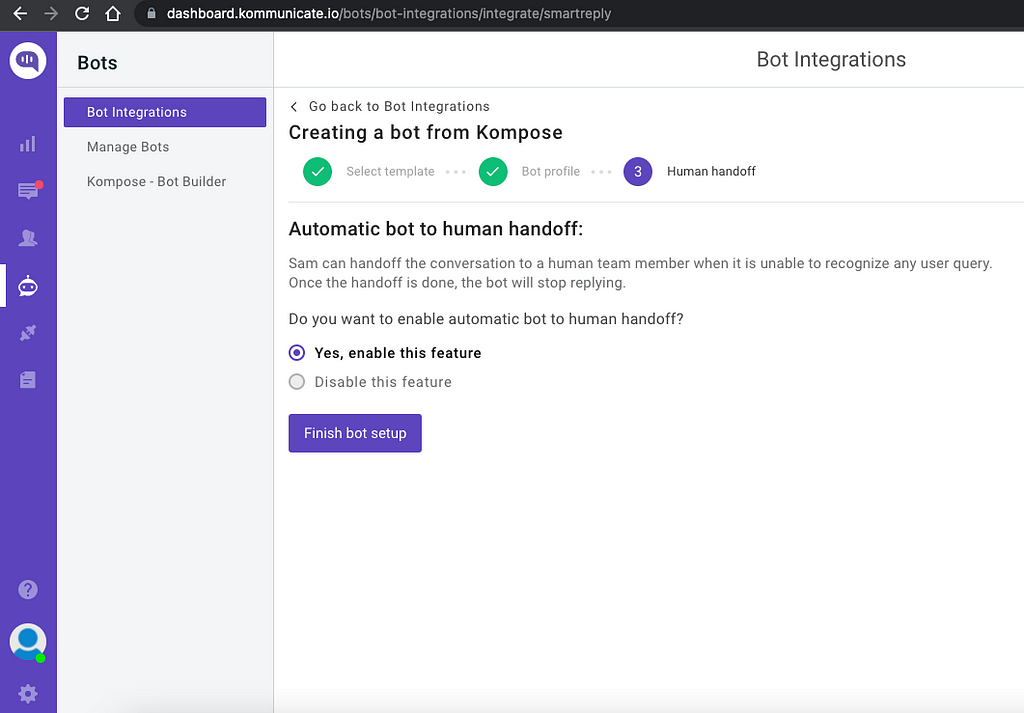
You are now done creating your bot. Now comes the interesting part — training the bot for a query it does not understand. This is done by clicking the “Enable bot to human transfer” feature. Enable this feature and click “Finish Bot Setup.”
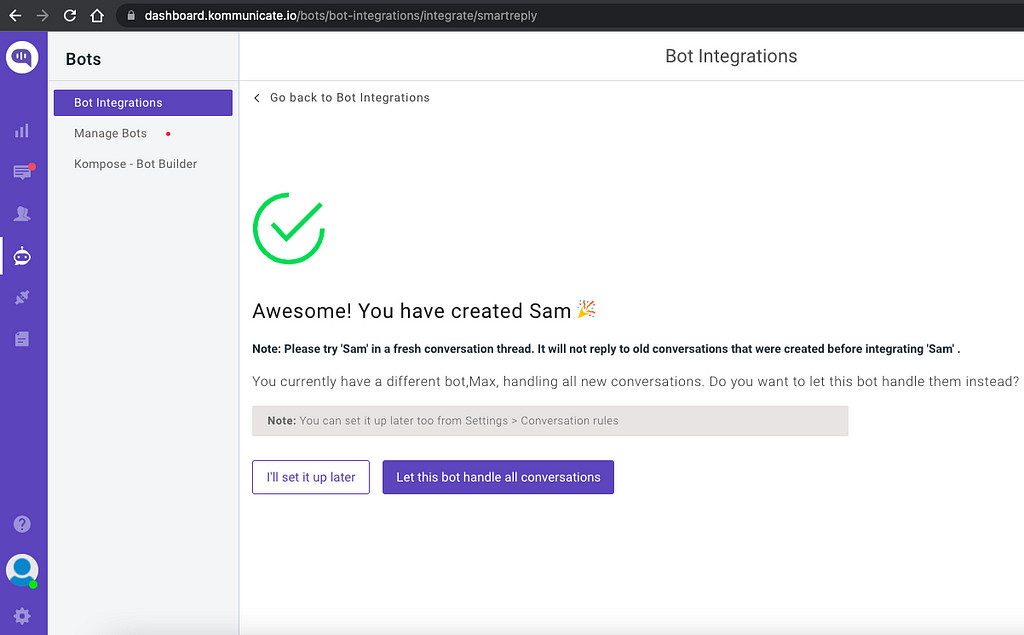
From the next page, you can choose if this bot will handle all the incoming conversations. Click on “Let this bot handle all the conversations,” and you are good to go.
Newly created bot here: Dashboard →Bot Integration → Manage Bots.
Step 2: Create welcome messages & answers for your chatbot
First, set the welcome message for your chatbot. The welcome message is the first message that the chatbot sends to the user who initiates a chat.
Click the “Welcome Message” section. In the “Enter Welcome message — Bot’s Message” box, provide the message your chatbot should be shown to the users when they open the chat, and then save the welcome intent.
After creating the welcome message, the next step is to feed answers/intents. These answers/intents can be the common questions about your product and service.
The answers section is where you’ve to add all the user’s messages and the chatbot responses.
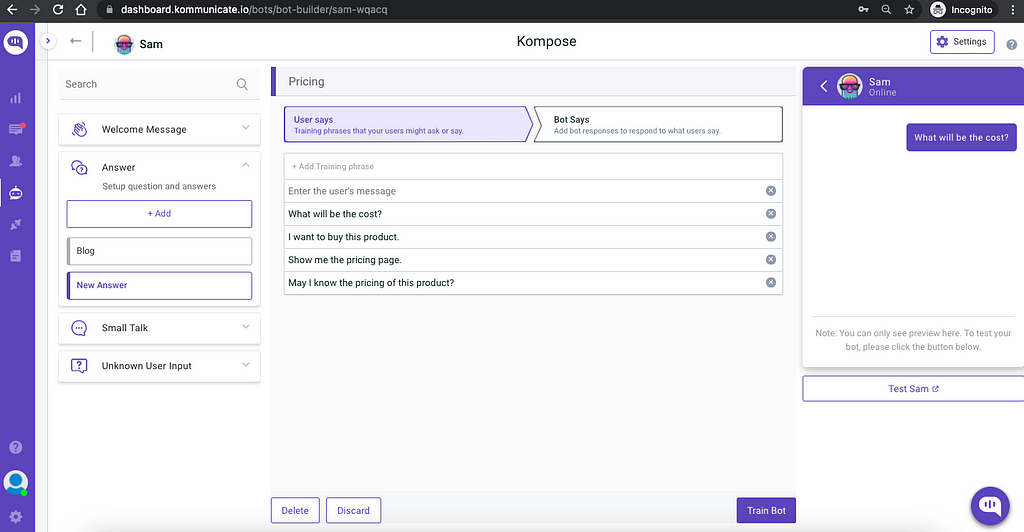
Go to the “Answer” section, click +Add, then give an ‘Intent name.’
In the Configure user’s message section — you need to mention the phrases that you expect from the users that will trigger.
Configure the bot’s reply section — you need to mention the responses (Text or Rich messages) the chatbot will deliver to the users for the particular message. You can add any number of answers and follow-up responses for the chatbot.
Phase 2: Add the created chatbot to your IOS Project using Cocoapods
Step 1: Setup Cocoapods:
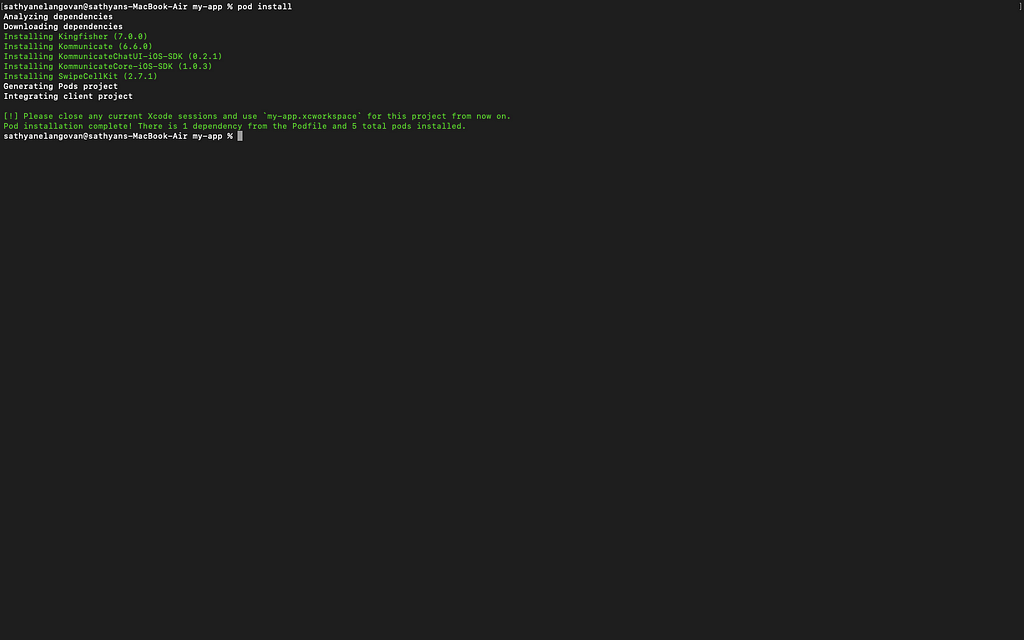
Since we are going to add the Kommunicate SDK using cocoapods, this step is necessary for it. If you already have cocoapods in your system, then you can skip the step. If not, follow the link & install cocoapods
How to add a Chatbot to iOS was originally published in Chatbots Life on Medium, where people are continuing the conversation by highlighting and responding to this story.
How do collect and train data for speech projects? — TwinzTech Blog
Some refined tweaks can give you an enormous advantage over other players in the Escape from Tarkov game, which most gamers ignore. The steps are simple yet effective; moreover, if you ignore these features, it becomes a barrier in your path to consistent victory.
Some subtle moves brighten your winning perspective. Primarily you need to survive in a hostile environment; then, you will encounter a spectrum of game mechanisms; the following tips will help you to overcome those barriers.
1. Participate in quests
At the beginning of the voyage, you must participate in as many numbers of possible quests. It is a warm-up round. The more you face opponents, the more your self-reliance fortifies. The quests make you acquainted with varied weapons and teach you different combat styles.
After successful completion of quests, your weaponry, ammunition, and utilities increase significantly and give you a strategic advantage. As quests are crucial to stay alive, you can use some Tarkov hacks.
2. Play with bots
Before you step forward in a real war zone, you can play online and offline computer bots. As the bots are AI-driven, they follow a certain pattern and are more systematic than human players; the session gives you the necessary experience and skill before you play the real Escape from Tarkov.
You not only gain some essential experience but also hone your gaming skill. In this gaming session, you would not be able to open new levels and get additional weapons, but build up your skill and hence increase your scoring rate.
3. Read the map
If you learn the map thoroughly, it will save many potential pitfalls, and you will be able to seize many opportunities if you know the exact location of yourself. There are many passageways and escape routes that you can utilize for ambush and run away after the attack.
To make the map more readable, you can use another device to display it. Try to memorize the flanks and escape routes as it gives some precious moments that can be decisive between life and death.
4. Shield your health
Every player has inherited 435 health points, but in combat, you will incur health hazards as you give frightful time to enemies. Even if you are armed with state-of-the-art weapons, you need to shield your health. The severity of the injury is displayed in color schemes; grey implies you need medical health while showing the gravity of the health issue. The provided Medikit can take care of moderate wounds but opt for a CMS kit in case of severe injury.
5. Buy Insurance
In combat, you can lose any item, including your gear and ammo. Use ten thousand rubles to buy the insurance but covers only those items that have not been extracted. You can hide the insured items in a secret place but need to recover them within seventy-two hours once it is returned to your wallet.
Insurance can be insignificant if the gear and weapon are not premier because most players will ignore those regular items; you can use the money for a greater purpose.
6. Ammos
The ammo plays a pivotal part in the Escape from Tarkov game; it enhances the firepower and accuracy of the weapons considerably. But you need to have the knowledge of which ammo aligns with which gun. All ammo does not match with all weapons; you will find a guide that describes the specifications.
7. Security container
As the game unfolds and you inch up a higher level, the security container grows in size. You can conceal your weapons inside the container, safe from the probing eyes of enemies. It will keep the weapons safe from robbers. It will help to retrieve the items if you get eliminated at a particular level of the game.
8. Watch your move
In many PVP games, including Escape from Tarkov, the outcome is decided before a single bullet is fired. Learning to fire a fatal bullet and how to avoid one is the game changer for the title. Movement is paramount for staying alive; move with a purpose, and watch your every step; if you hear a subtle sound of breaking a twig, be on red alert.
Be silent. That camouflage your position; it could draw the enemies near to you and be seating ducks. If you are in the line of fire, do not panic; either shoot back or move away from the line of fire.
9. How and where
Do not thump while moving in a confined area or ignore footsteps sound while in the quest. This reveals your location, and veterans would be cheerful to be trigger happy. This does not imply you need to crawl silently all through the game; if you move at snail speed at an open location chance of getting killed is high.
Sound is not as crucial in highlands like woods and shorelines, but in congested places like interchanges or customs, you need to stride quietly and softly. You need to consider not only how you are moving but also where you are moving.
Artificial Intelligence should have safety measures to prevent harm to humans.
Artificial intelligence is a very smart instrument. It can create complex plans and outsmart humans in virtually every way imaginable. This has led many to be quite concerned about the rise of AI, but it may not be as scary as it seems. Here are some rules and laws that could help ensure that AI doesn’t endanger mankind.
Introduction
Artificial intelligence is a powerful tool that can make the world a better place. However, it also has the potential to cause great harm if left unchecked. This is why I believe that artificial intelligence should be governed by rules and laws.
A.I generated Image
Artificial Intelligence is an emerging field of research that uses computers to perform tasks usually associated with human intelligence, such as visual perception, speech recognition, decision-making and translation. Artificial intelligence systems are becoming increasingly capable at performing tasks that were once thought to require human intellect or creativity. These include: intelligent robots (robots able to perceive their surroundings and move), electronic assistants (computer programs which allow users to perform simple tasks without ever having to interact with them directly), prediction engines (systems which learn from historical data in order to make future predictions), expert systems (systems which use knowledge embodied in training examples) and natural language processing (a subset of artificial intelligence concerned with creating computer programs which can understand human language).
The important thing is to ensure that AI systems are safe enough from hackers or others who will try to misuse them for evil purposes or even just for personal gain. This can be done by making sure there are rules set in place so that any malicious acts done by AI will get punished by law enforcement agencies.
Artificial Intelligence Ethics
The idea of ethical use of artificial intelligence (AI) is not new. In fact, it was first proposed in 1968 by Joseph Weizenbaum, a computer scientist who wrote an influential paper on the topic. The paper was entitled “Computer Power and Human Responsibility,” and it argued that computers should be programmed to behave ethically.
In recent years, much has been written about the need for ethical use of AI. But what does this mean? How do we ensure that AI behaves in ways that are aligned with our values?
To answer these questions, I need to start with some basics. In order to ensure ethical behavior from AI systems we must first understand how they work as well as their strengths and weaknesses. To this end, we must also understand how humans think and behave in order to better design them so they can learn from us rather than from their own experiences.
Will A.I Be Involved With Future Crimes?
AI has been implemented in many areas of life but there is one area where it has not been as successful: criminal activities and law enforcement. There are several reasons why AI cannot be used effectively to fight crime and terrorism:
The rules of engagement are unclear: The rules of engagement for law enforcement agencies have not yet been established for AI agents. Therefore, these agents will be operating under an ambiguous framework which could lead to unpredictable outcomes or even cause harm to innocent people if the agent does not follow its programming correctly or accidentally causes damage to property or other people.
There is no clear objective for AI agents: Law enforcement agencies need an objective for their actions if they want them to carry out operations efficiently and effectively without causing collateral damage or harming innocent people.
How to prevent miss use of A.I in future
The use of artificial intelligence (A.I.) in the future will be beneficial for our lives but it is important to govern A.I in a way that it can be used safely and ethically.
We should make rules and laws to govern A.I because we cannot assume that everything will work out fine. We need to have rules and regulations for us to know what we should do or not do when it comes to the use of A.I in the future.
We need to make sure that everyone knows about these rules and regulations so they can follow them when they encounter an artificial intelligence that is not under human control, like in a game or something else like that where you have no control over what happens next, you can only assume what might happen by looking at what happened before or looking at some other experiences people have had with such computers before.
We have to be aware of our rights and obligations towards A.I, as well as their rights and obligations towards us. We should also have an open dialogue about what kind of rules and laws we want to make for A.I, so that we can make sure that the technology doesn’t get abused by humans in the future.
In order to prevent misuse of A.I by humans in future, we should first introduce a new law that will control the usage of AIs by humans in our country. This new law should also cover other countries around the world, so that we can agree on common standards for all countries who use AIs for their own purposes.
We could start by creating a committee where representatives from different sectors (government agencies, academia etc.) will discuss on how they want to regulate their usage of AIs in their respective fields or industries.
Takeaway
A.I is literally a device aimed at creating a better future for us, and if it’s not governed by laws then the bad can easily outweigh the good. We should work towards making sure it remains beneficial and does not harm the progress of humanity.